
- Docs
- Variables
- Variables overview
Variables
Variables overview
Variables turn a fixed snippet into a template: today’s date, a name you fill in, a choice, a total, or your clipboard.
On this page
How variables look#
A variable is a keyword inside double curly braces. Some take a value after a colon, and options are separated by a vertical bar |:
{{date}}
{{date:DD/MM/YYYY}}
{{pick:Greeting|Hello|Hi|Hey}}
Type variables yourself or click one in the editor’s Variables panel to insert it at the cursor. Then rename labels such as “Customer” or “Greeting” to suit your snippet.
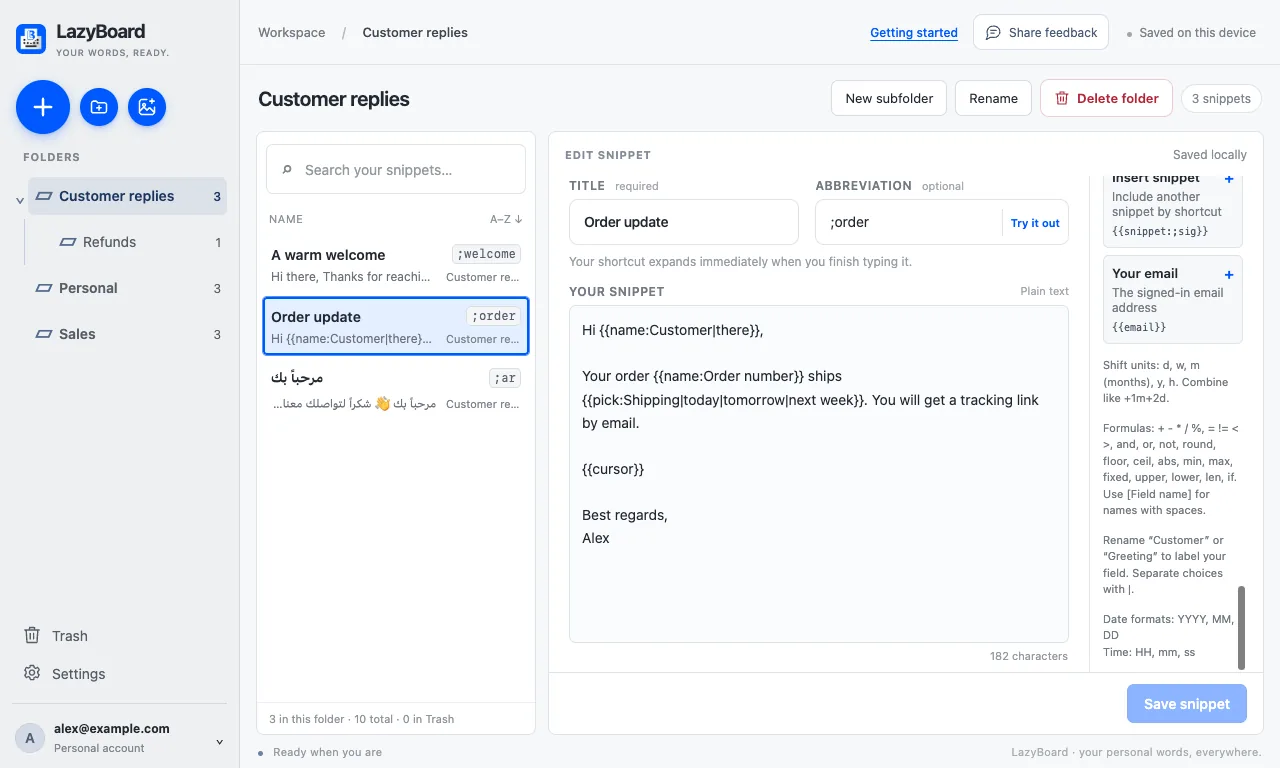
All variables#
The fill-in window#
When a snippet contains fields (name, pick, multipick, text, toggle or datefield), LazyBoard opens a Fill in snippet window before inserting. The fields appear inside your text, so you see the message as you complete it. Press Copy or Insert to finish, or Cancel to insert nothing.
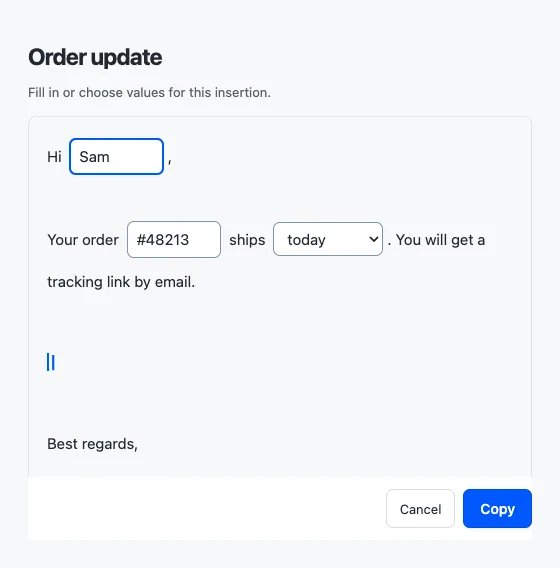
Snippets with only automatic variables, such as {{date}} or {{clipboard}}, insert straight away.
Rules for fields#
- Same label, same answer. A field label used twice is asked once and filled in both places. Give fields different labels to ask twice.
- Labels can be 1–100 characters and can include spaces and any language.
- A snippet can have at most 20 different fields.
- Answers are inserted as plain text. Typing
{{date}}into a field, or copying it, inserts those characters literally. - An expanded snippet can be up to 100,000 characters.
- Text in braces that isn’t a variable, like
{{unknown}}, is left exactly as written. Shell scripts with${HOME}are safe too.
Variable groups#
Phone keyboard syntax#
Snippets imported from the original LazyBoard phone keyboard keep their single-brace variables. They are all Free:
| Phone syntax | Meaning |
|---|---|
{Customer} | A field to fill in, like {{name:Customer}} |
{issue|feedback|idea} | A list to choose from (not random), labelled Choice 1, Choice 2… |
{Regarding?issue|feedback|idea} | A list with the label “Regarding” |
{date} | Today’s date, like {{date}} |
{DATE: dd.MM.yyyy} | Today’s date in a phone date format |
{DATE*: dd MMMM yyyy} | Pick a date when inserting |
%CLIPBOARD% %CURSOR% %tab-key% | Clipboard, cursor position and a tab character |
Phone syntax Free
Hi {Customer}, thanks for your {Regarding?issue|feedback|idea}!
Sent {DATE: dd.MM.yyyy}
You fill in
- Customer
- Sam
- Regarding
- feedback
Result
Hi Sam, thanks for your feedback!
Sent 08.09.2026