
- Docs
- Organising
- Folders, search and Trash
Organising
Folders, search and Trash
Keep related snippets together and find any of them in seconds.
Folders and subfolders#
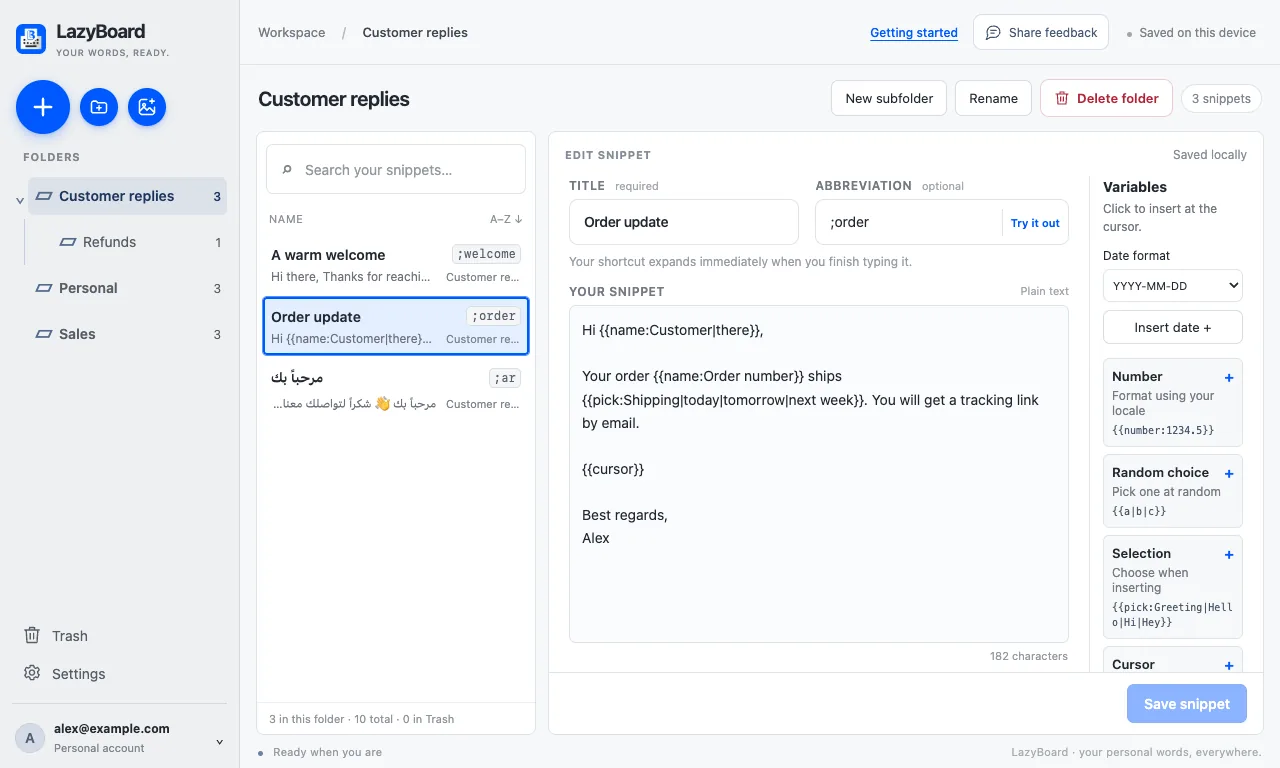
- Click the round New folder button at the top of the sidebar to create a folder.
- Open a folder and choose New subfolder to nest one inside it. Click the arrow beside a folder to collapse its subfolders.
- Use Rename or Delete folder at the top of an open folder. Deleting a folder moves it and its snippets to Trash.
- Drag folders to reorder them, or press Alt↑ / Alt↓.
- To move or delete several snippets, ⌘-click, Ctrl-click or Shift-click them in the list, then choose Move… or Delete….
Search#
The search box above the snippet list searches the titles and content of snippets in the open folder. Press ⌘ShiftSpace to open the picker and search your whole library.
Duplicate a snippet#
Duplicate a snippet to start a new one from it. The copy gets “(copy)” at the end of its title.
Image snippets#
On Mac, the round New image snippet button saves an image (up to 10 MB) that you insert like text. Image snippets stay on that Mac and are not synced.
Trash#
Deleted snippets and folders go to Trash in the sidebar. From there you can Restore an item, choose where to restore it, delete it permanently, or Empty Trash. Permanent deletion cannot be undone.