
Your everyday work.
Fewer repeat keystrokes.
The introduction you send every week. The answer you’ve written a hundred times. Keep those words ready, then make each message your own.
Saved replies · Text shortcuts · Personal touches
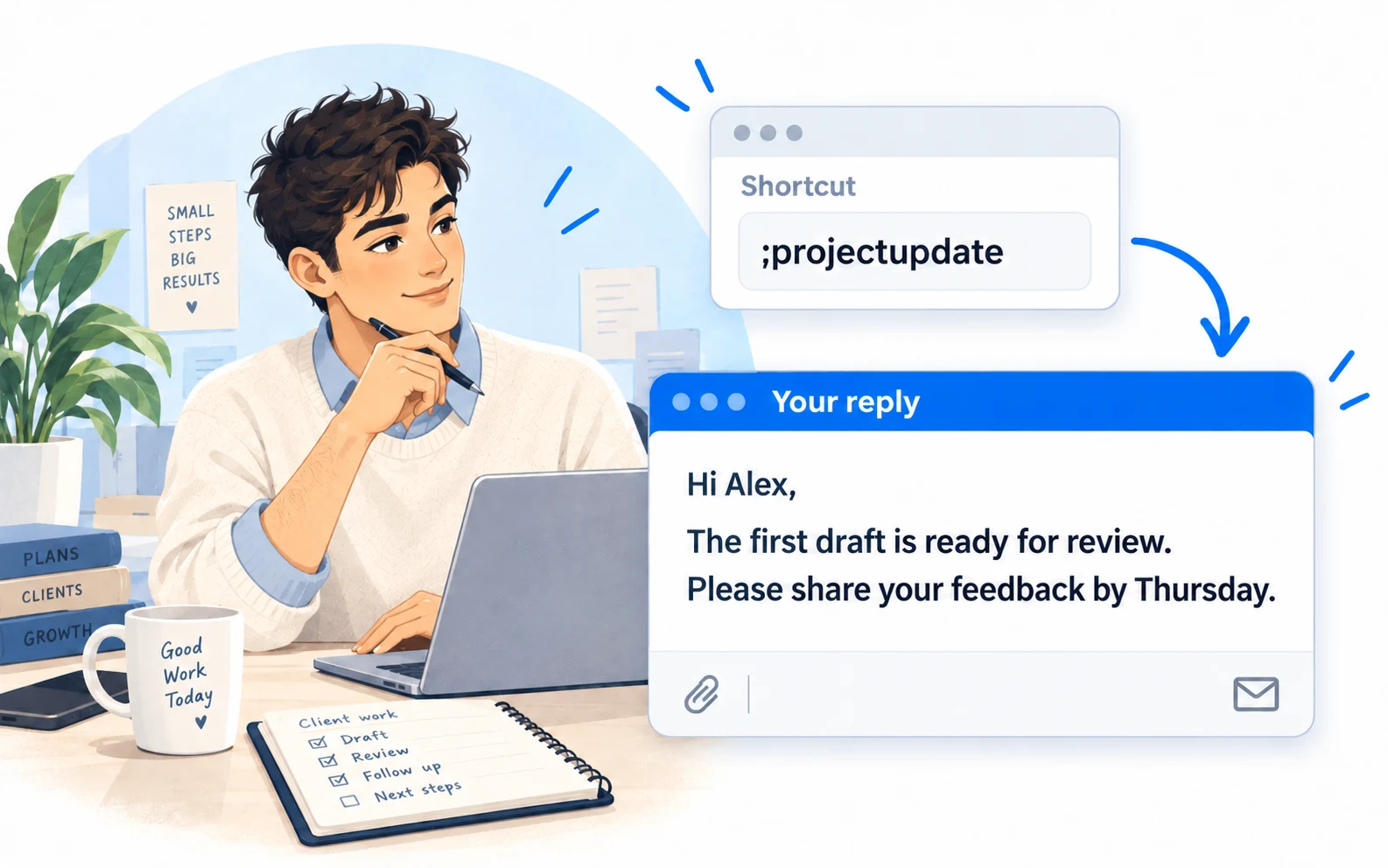
A starting point for the work you do
Choose your role for specific examples, a suggested folder structure, and a simple way to start using saved replies.
Customer support
Keep your troubleshooting steps and next-step messages within reach. Spend your attention on the customer’s situation instead of retyping the same explanation.
Explore customer support →02Recruiters
Interview invitations and scheduling details often start the same way. Save that structure, then give each candidate the details they need for their next step.
Explore recruiters →03Teachers
Save the explanations you use often, then add the observation that makes them useful to one student. Build a feedback bank that gives you a starting point for each response.
Explore teachers →04Healthcare
Keep general office information easy to share. Save directions, opening hours, and booking instructions so you can reuse clear wording during everyday administrative work.
Explore healthcare →05Sales
Keep your meeting recaps and resource replies ready. Add the detail from the conversation that makes the next message relevant to the person receiving it.
Explore sales →06Property managers
Keep enquiry replies, viewing information, and maintenance acknowledgments in one organized library. Choose the right message, then check the property and details before sending.
Explore property managers →Build a library from the messages you already write
- 01
Start with a real repeat
Find a message you’ve typed several times this week. Save the reusable part as a snippet, give it a descriptive title, and choose a shortcut you won’t type by accident.
- 02
Leave room for the person
Use a fill-in field for a name or project. Keep details that change out of the fixed text, and review the completed message before sending.
- 03
Keep it easy to find
Group snippets by task: client replies, operations, or project updates. Retire old links and wording when your process changes.
A personal library that follows your workflow
Use folders and subfolders to separate different kinds of work. Start with a small set of replies you actually use; expand the library when another repeat task appears.
Build an organized library →- Work
- Client replies
- Project updates
- Operations
At your desk.
On your phone.
Use shortcuts or the snippet picker in supported desktop and Chrome fields. On iPhone and Android, use the LazyBoard phrase keyboard to select saved text.
Some apps and editors restrict insertion. Start with a sample in the field you use, and use Copy when needed. Mobile libraries and purchases are separate from desktop and Chrome.
Before you start
Does LazyBoard work in Slack and WhatsApp?
Yes. On Mac, shortcuts expand and the snippet picker inserts saved replies in the Slack and WhatsApp desktop apps, and in Slack and WhatsApp Web in Chrome. If you use them on Windows, try one reply first.
Is LazyBoard a shared team workspace?
These pages show how an individual can build a reusable library for work. Account sync keeps a signed-in user’s library available on supported desktop and Chrome clients. It is not a shared team approval or administration workflow.
Does LazyBoard send messages automatically?
No. Text expansion inserts your saved words into a supported field. You review the message and send it yourself.
Can I use it on my phone too?
LazyBoard also has phrase keyboards for iPhone, iPad, and Android. Mobile uses a keyboard-based workflow and separate purchases. See the mobile guide for setup and the import guide for moving phrases to desktop.
Keep going
Examples prepared with AI assistance and checked against LazyBoard’s current guides. Updated October 14, 2026. Suggest a correction.