
LazyBoard ·
Before you import
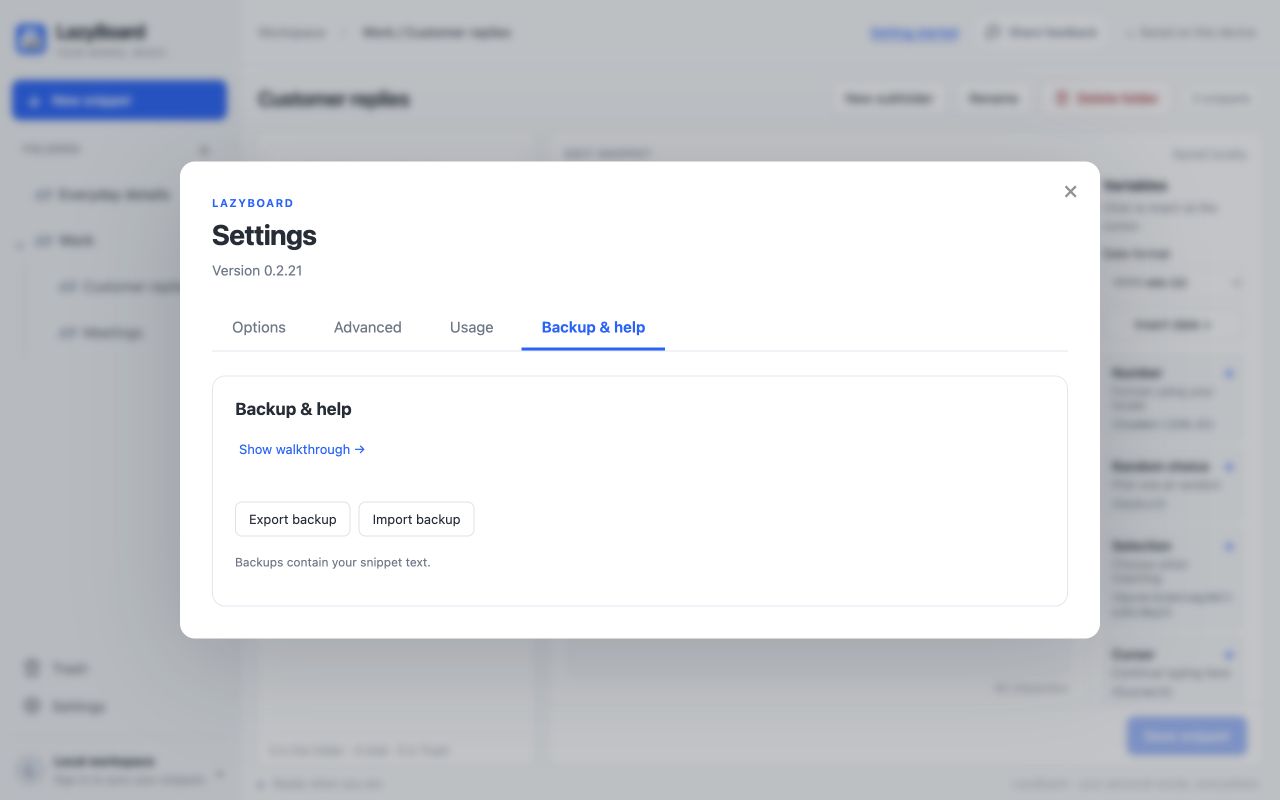
You can copy phrases from a LazyBoard mobile export into the desktop library using Settings → Backup & help → Import backup. This guide covers that one-time file import. It does not connect your mobile library to desktop sync.
Keep the original export and use Export backup to save your existing desktop library first. Choose the desktop workspace you want to add the phrases to before importing. An account library and a local library are separate destinations.
The imported folders and snippets must fit your current plan. A large mobile library can exceed the desktop Free plan’s limits; check Free and Pro limits before importing. Mobile purchases do not unlock a desktop Pro subscription.
Choose a LazyBoard export file
.lazyboardexportand.bokharyexport: supported mobile export files containing folders and phrase text..csv: the LazyBoard mobile CSV export format, including its folder and phrase tables. An arbitrary spreadsheet CSV is not the same format..json: a supported LazyBoard backup or mobile export structure. Renaming another file to JSON does not convert it.
On iPhone or iPad, open LazyBoard’s More screen and find the import/export options. Save the export to Files or transfer it to your computer. Export access depends on your mobile purchase; check the options shown in your app. For the mobile side of the process, see exporting and importing mobile phrases.
Use the original file rather than copying its contents into a spreadsheet editor. The desktop importer accepts files up to 20 MB and backups of up to 10,000 items, including folders.
Import into the desktop library
- Open the current LazyBoard desktop app. Check Downloads for availability on your computer.
- Confirm whether you are using the local workspace or the intended signed-in account.
- Open Settings, then Backup & help.
- Choose Import backup and select your mobile export.
- Read the import result, then open one imported folder and check a few phrases.
What carries over, and what needs checking
- Folders and subfolders: the supported mobile export hierarchy is recreated in desktop.
- Phrase titles and text: these become desktop snippets. Check line breaks, punctuation and any non-English text in a few examples.
- Shortcuts: mobile phrase titles are not converted into desktop abbreviations. Add a shortcut yourself or browse for the snippet.
- Variables: phrase text is preserved. Desktop understands supported mobile placeholders and choices, but test each variable-heavy reply before relying on it.
- Mobile media and presentation: this is a text-library transfer, not a migration of photos, keyboard colors or every mobile setting.
A mobile folder’s leading icon emoji may be hidden in the desktop folder label. That display choice does not mean the folder’s phrases were lost.
For example, Work → Customer replies → Request received becomes a nested folder and snippet you can browse. Give that snippet a distinct abbreviation such as ;received if you want to expand it by typing.
Test a reply with changing details
A mobile phrase such as Hi {customer}, your request is {status?received|in progress}. contains a fill-in field and a choice. In the desktop app, give the snippet an abbreviation and use Try it out beside the abbreviation field.
Enter Maya for customer and select in progress. The expected text is Hi Maya, your request is in progress. Check a date-based phrase separately because date formats and the values you choose affect its output.
See the desktop variable examples for fields you want to adjust after import. Clipboard and cursor variables also depend on the insertion context, so test them in an unsent draft in your normal app.
Avoid duplicates and understand sync
Import adds new copies with new item identities. It does not replace your mobile library or merge snippets by their titles. Importing the same mobile export again can create duplicate folders and phrases.
Start with a small export when that option is available. After checking it, decide whether to keep that test copy before importing a larger overlapping export. Use the organization guide to place the imported replies where you need them.
This file transfer does not enable ongoing mobile-to-desktop synchronization. Desktop and Chrome account sync is a separate Pro feature. A later mobile edit does not update an earlier file import; keep that distinction in mind when maintaining both libraries.
If the import fails
- Unsupported format: export again from LazyBoard and keep the original extension. Generic CSV files are not accepted as mobile backups.
- Plan limit: compare the current desktop library plus the incoming folders and snippets with your plan’s capacity.
- File too large: use smaller exports if your mobile app offers them. Do not truncate the file by hand.
- Missing folders or mismatched text: keep the original backup and report the error through Share feedback, with the app version and file format.
Once the import looks correct, export a desktop backup. You now have both the original mobile file and a copy of the desktop library you checked.
Prepared with AI assistance. File formats and the worked text example were checked against LazyBoard’s importer and template renderer. Screenshots use sample data in an isolated interface demo.