
LazyBoard team · · 3 min read
Organize around the moment you need a reply
A snippet library is useful only if you can find the right text when you need it. Start with how you work, not a complicated filing system. If you spend your day answering questions, arranging meetings, and sharing project updates, those are good starting folders.
There is no need to create a folder for every possible topic. A few clear groups are easier to browse than many nearly empty folders. If a folder becomes difficult to scan, split it around a meaningful task.
Try a small folder structure
- Everyday details: email addresses, signatures, frequently shared links, and delivery instructions.
- Customer replies: acknowledgments, questions, progress updates, and resolutions.
- Meetings: booking links, confirmations, reminders, and follow-ups.
Use separate folders for different clients only when their wording or processes are genuinely different. Otherwise, one reusable reply with a name or project field may be easier to maintain than several similar copies.
For a personal library, start with the category you use most and add others as needed. LazyBoard’s desktop and Chrome Free plan includes 10 snippets and 3 folders; check the current plan details before planning a larger library.
Give every snippet a descriptive title
Titles such as “Reply 2” and “New snippet” tell you little when browsing. Prefer “Request received — next update” or “Meeting — booking link.” Put the situation first, then the purpose.
Use the same terms consistently. If one snippet says “appointment,” another says “booking,” and a third says “meeting” for the same task, finding the right one gets harder. Choose wording that matches how you think about the task.
Choose a shortcut pattern you can remember
Pick a prefix that is unusual in your normal writing, then use a recognizable word: /received, /progress, and /meeting. Avoid turning every shortcut into a short code you must memorize.
Before assigning a shortcut, check whether the app or website where you type already uses it. Slash commands are common in some editors. In that case, a different prefix may fit your workflow better. Test shortcuts where you actually work.
On Mac, the snippet picker lets you search or browse when you do not remember a shortcut. On mobile, folders help you locate a phrase to tap in the keyboard. Those are different ways to reach the same saved words, so descriptive titles help both.
Reduce duplicate wording
When several snippets differ only by a name, date, or small choice, consider one template with desktop and Chrome variables. Mobile users can follow the mobile variables guide. Use the syntax for your app, and test the output.
Keep separate snippets when the meaning or process is different. A refund acknowledgment and a refund approval should not be interchangeable options you can choose accidentally.
Review the library as your work changes
Set aside a few minutes when your process or product changes. Check links, names, instructions, and policy wording. Remove duplicates you no longer need, and export a backup before making major changes.
For mobile transfers, follow the export and import guide. Mobile libraries and purchases are separate from the desktop and Chrome account system, so do not assume a change in one automatically appears in the other.
If you are building from scratch, the template gallery offers useful starting points. Save only what fits your routine, then adjust the wording after you have used it in a real conversation.
Make a large desktop library easier to browse
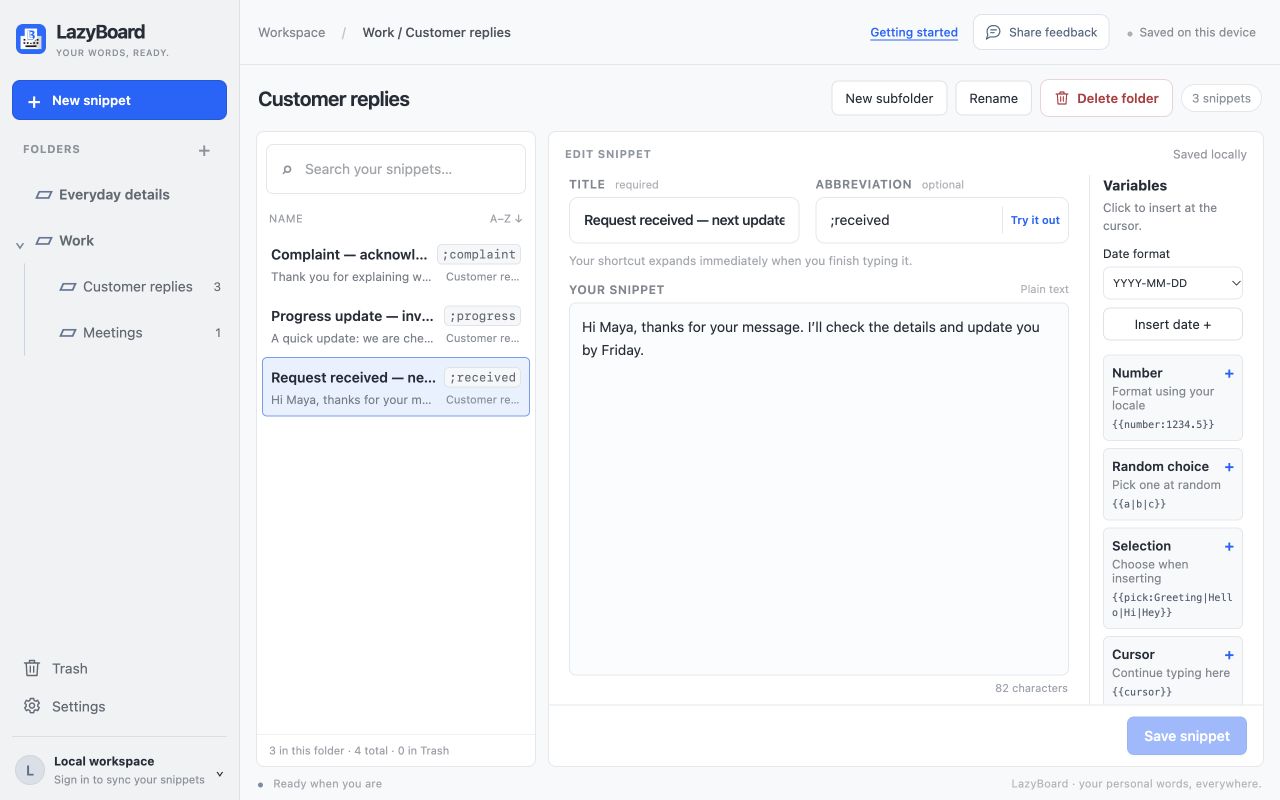
Use a parent folder for a broad area and subfolders for different tasks. For example, Work can contain Customer replies and Meetings, while Everyday details stays at the top level.
- Select a parent folder and choose New subfolder.
- Name the child for the situation you will search for, such as Customer replies.
- Use the arrow beside the parent to collapse or expand its children.
- Drag the divider beside the folder sidebar or snippet list to make more room for long names.
Move related desktop snippets together
- Open the folder containing the snippets.
- Hold Command on Mac or Ctrl on Windows while clicking the snippets you want. Use Shift-click for a range, or Shift + Up/Down from a focused list item.
- Right-click one of the highlighted snippets, choose Move [number] snippets, and select the destination folder.
- Check the destination when finished. Moving snippets leaves you in the original folder so you can continue organizing.
Make sure you select snippet rows, not a folder in the sidebar. Folder actions apply to that folder and its contents. Start with a small group and keep a backup before reorganizing a large library.
Use distinct shortcuts, not numbered extensions
If /win expands as soon as you finish typing it, you cannot reach /win2 before the shorter shortcut fires. Use names that do not begin with an entire existing shortcut: for example, ;winbuild and ;winsetup.
Apply the same rule to reply variants. Choose ;refundreview and ;refundapproved, instead of ;refund and ;refund2. Keep policy-sensitive replies separate and check the wording before inserting them.
Moving your phrases from a phone? Follow the mobile-to-desktop import guide before reorganizing the imported folders.
Updated October 8, 2026 with desktop folder and selection steps. Prepared with AI assistance and checked against the current desktop interface and shortcut matcher.