Free
$0
- 10 snippets and 3 folders
- Local, offline use
- No account needed
 LazyBoardSign in
Save the replies, signatures, and details you type every day. Type a short shortcut in a supported app and LazyBoard inserts the full text.
Free plan · Apple silicon and Intel · Works offline
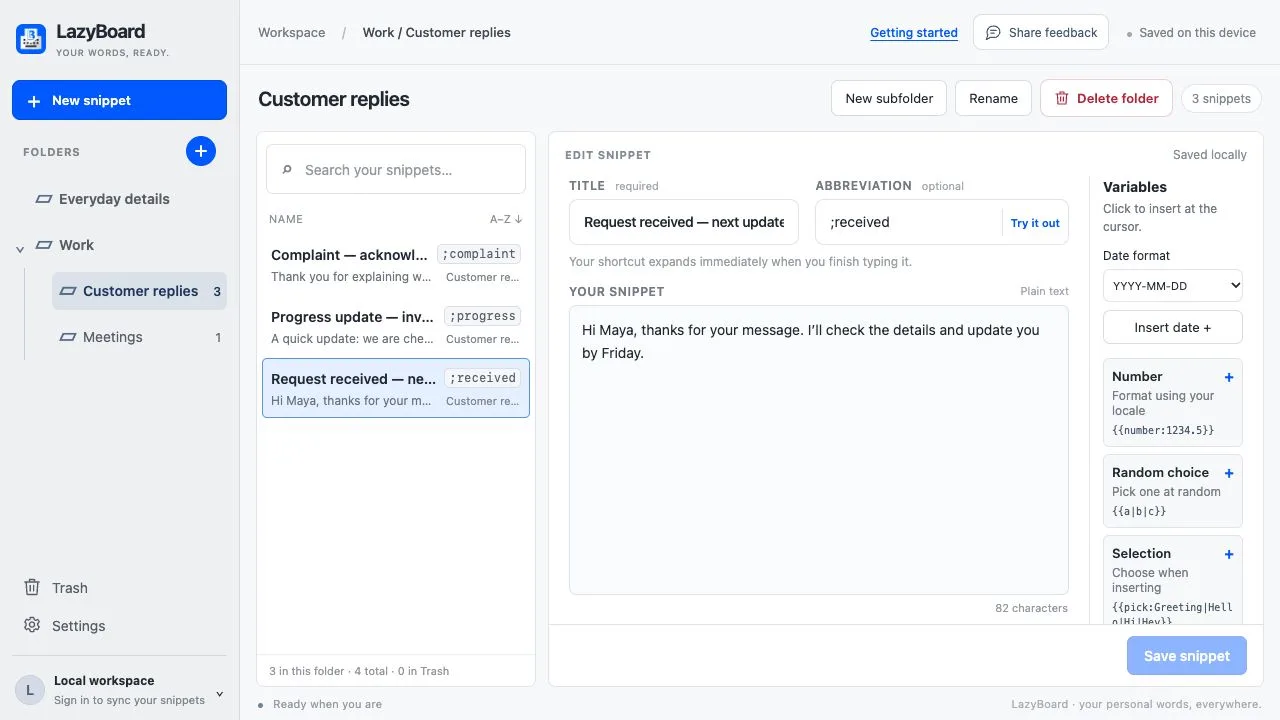
Open the DMG and drag LazyBoard to Applications. Allow Accessibility in System Settings → Privacy & Security, and Input Monitoring if macOS asks.
Create a snippet with a title and an abbreviation you would not normally type, such as ;thanks. Use Try it out to test it.
Type the abbreviation in a supported app or text field, or press ⌘ Shift Space to search your library and insert.
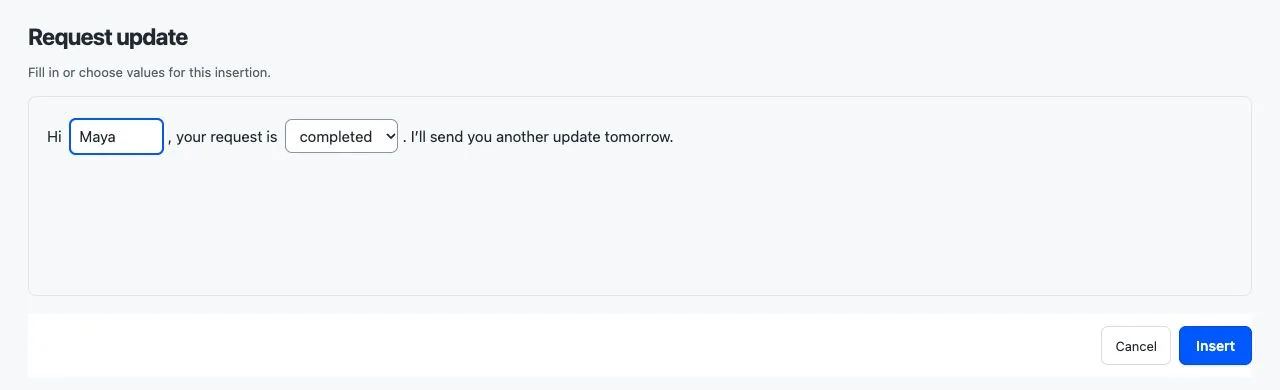
Add a name field, a list of choices, today’s date, a number, random text, or your clipboard to a saved reply. LazyBoard asks for the values when you insert it.
Forgot a shortcut? Open the picker, search your library, and insert the reply you need.
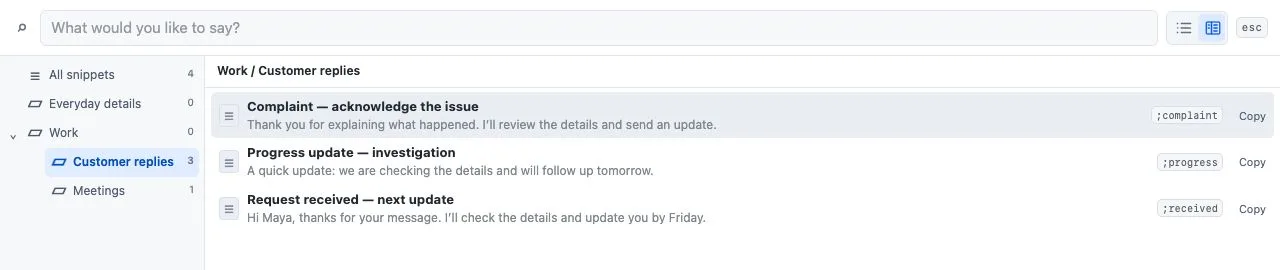
Use shortcuts or the snippet picker in supported apps and text fields. Some apps and editors restrict insertion; choose Copy in the picker and paste with ⌘ V when that happens.
Add the Chrome extension for website editors. With LazyBoard Pro, the same account keeps your library in sync between them.
Apple silicon (M1 or newer) and Intel Macs. Choose the matching download.
Yes, in System Settings → Keyboard → Text Replacements, but it works only in apps that use Apple’s text system. Word ignores it, and support in Chrome and web editors is unreliable. LazyBoard expands shortcuts in supported apps and adds fill-in fields, folders, and a snippet picker.
macOS requires it for an app to detect your shortcuts and insert snippets into other apps. If the Accessibility banner stays after you allow it, remove the old entry with the minus button, add LazyBoard from Applications again, and click Recheck.
Yes, with LazyBoard Pro. Sign in to the same account in the Mac app and the Chrome extension.
No. Mobile libraries are separate. Use the import guide to bring your phone phrases into the desktop app.