Replies in one tap
Save a full message, a short acknowledgment, or a signature. Switch to LazyBoard and tap the phrase instead of typing it again.
Thanks for your message! I’ll get back to you shortly.
 LazyBoardSign in
A phrase keyboard for the things you type every day. Save replies, email templates, addresses, and signatures—then insert them from your keyboard.


Download free · In-app purchases available
See how it works ↓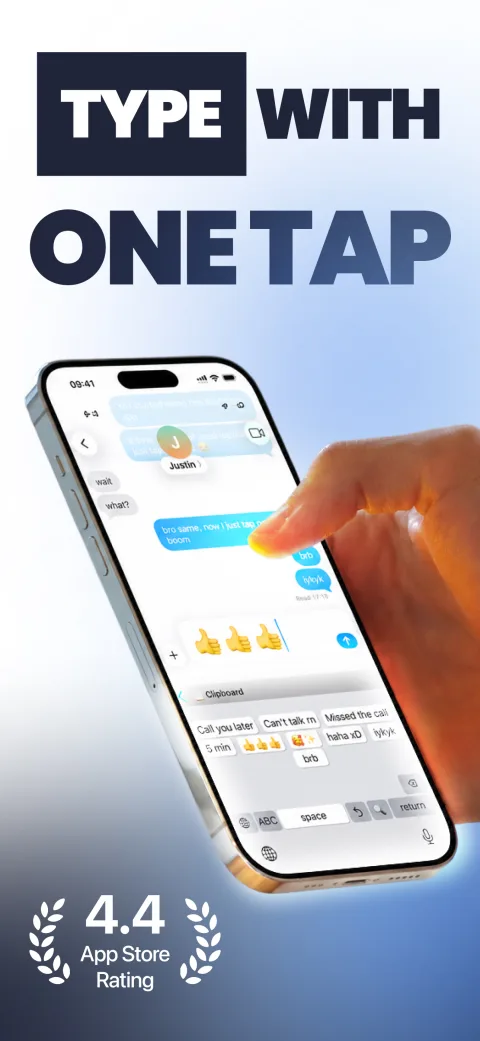
Build a library that fits the way you work, chat, and organize your day.
Save a full message, a short acknowledgment, or a signature. Switch to LazyBoard and tap the phrase instead of typing it again.
Group phrases by topic, customer, or task. Keep work replies separate from personal details so the right words are easier to find.
Keep copied text close to your saved phrases. Use the app’s clipboard options to manage the entries you want to reuse.
Explore clipboard settings ↗Organize reusable images in a Media folder. On iPhone and iPad, you can also use saved photos and GIFs through the iMessage extension.
Insertion options depend on the app you’re using.Export your phrase library to keep a copy or share it, then import it into LazyBoard. Available purchase options are shown in the mobile app.
Export and import guide ↗Use iCloud sync to keep your phrases available across your iPhone and iPad.
iPhone and iPad feature. Mobile libraries and purchases are separate from desktop and Chrome.Variables let you adapt a saved phrase when you insert it. Fill in a name, choose an option, or include a date without rewriting the whole message.
Explore mobile variables ↗Hi {customer},
thanks for your message about
{your order|your appointment}.
Keep opening messages, progress updates, and common answers ready.
Reuse email addresses, delivery instructions, and signatures.
Start with a reusable message, then fill in the date and other details.
Setup takes a few steps. Your usual keyboard is still available when you need it.
They share the idea of reusable words, but mobile uses a custom keyboard. Mobile libraries and purchases are separate from the desktop and Chrome account system. A desktop Pro subscription does not unlock the mobile app.
You can select LazyBoard in apps that support third-party keyboards. Some apps and secure fields use the system keyboard instead. Image insertion also depends on what the receiving app supports.
Full Access is not required for basic phrase insertion. Some features depend on keyboard permissions. Start with the permissions you need, and see the mobile help center if a feature is unavailable.
You can download LazyBoard free. Additional features are available through in-app purchases. Check the App Store, Google Play, or the purchase screen in your app for current options and pricing.
Use export and import to transfer your mobile phrase library. On iPhone and iPad, iCloud sync is also available. See the transfer guide before replacing an existing library.
Save your words once. Bring them into your next conversation.