
Your first snippet.
Ready in minutes.
Give LazyBoard permission, save something you type often, and use it in your next message.
Enable Accessibility on your Mac
LazyBoard needs Accessibility access to detect your shortcuts and insert snippets into other apps.
- Open LazyBoard. If you see Allow Accessibility, click it to start setup.
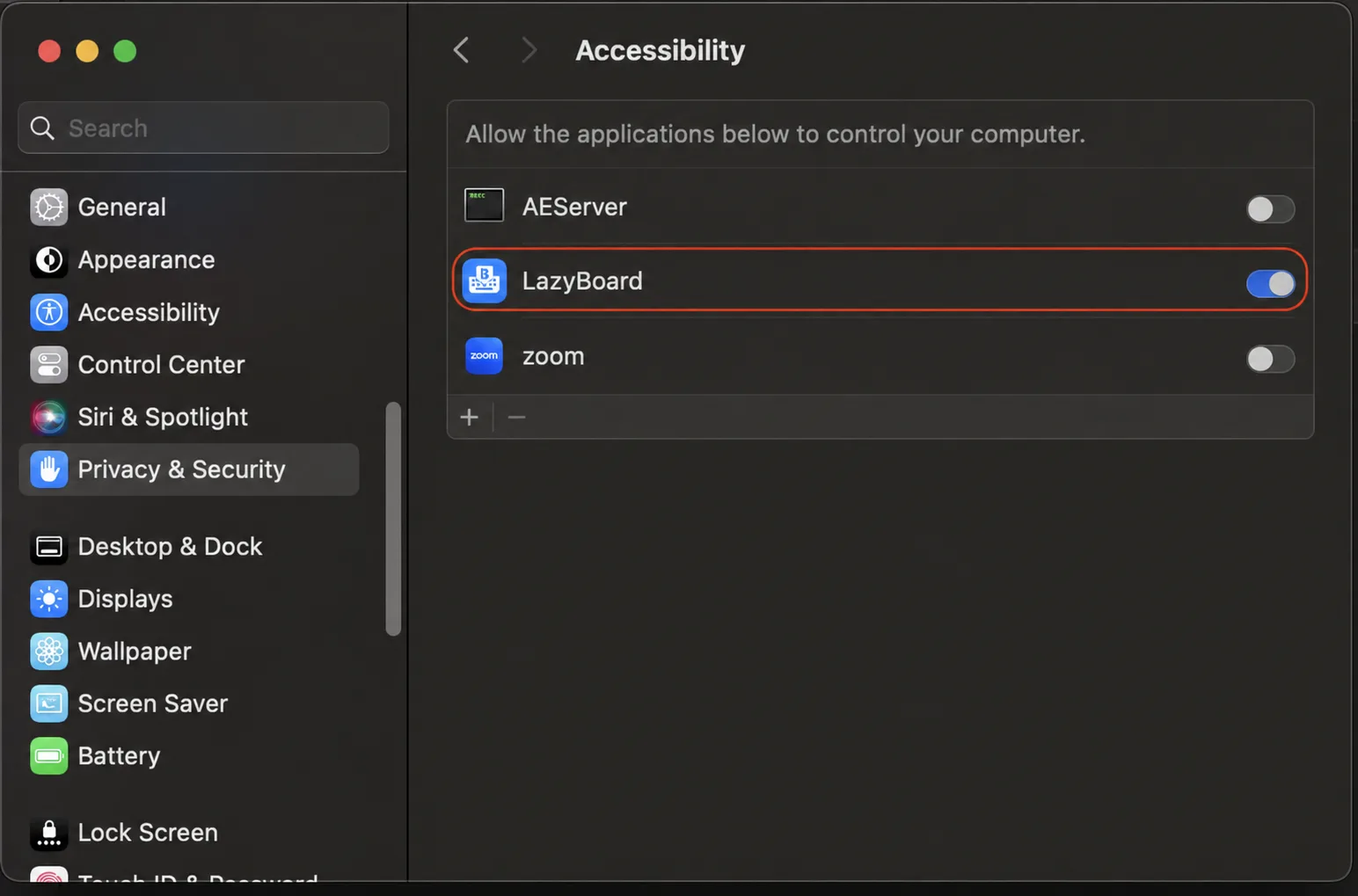
- In macOS, open System Settings → Privacy & Security → Accessibility.
- If LazyBoard is missing, click +, select LazyBoard from Applications, and click Open. Authenticate if macOS asks.
- Turn on the switch next to LazyBoard.
- Return to LazyBoard and click Recheck if the permission banner is still visible.
Using Windows? Skip this step. macOS Accessibility permission is only required on a Mac. For the browser extension, use the Chrome setup guide.
Add your first snippet
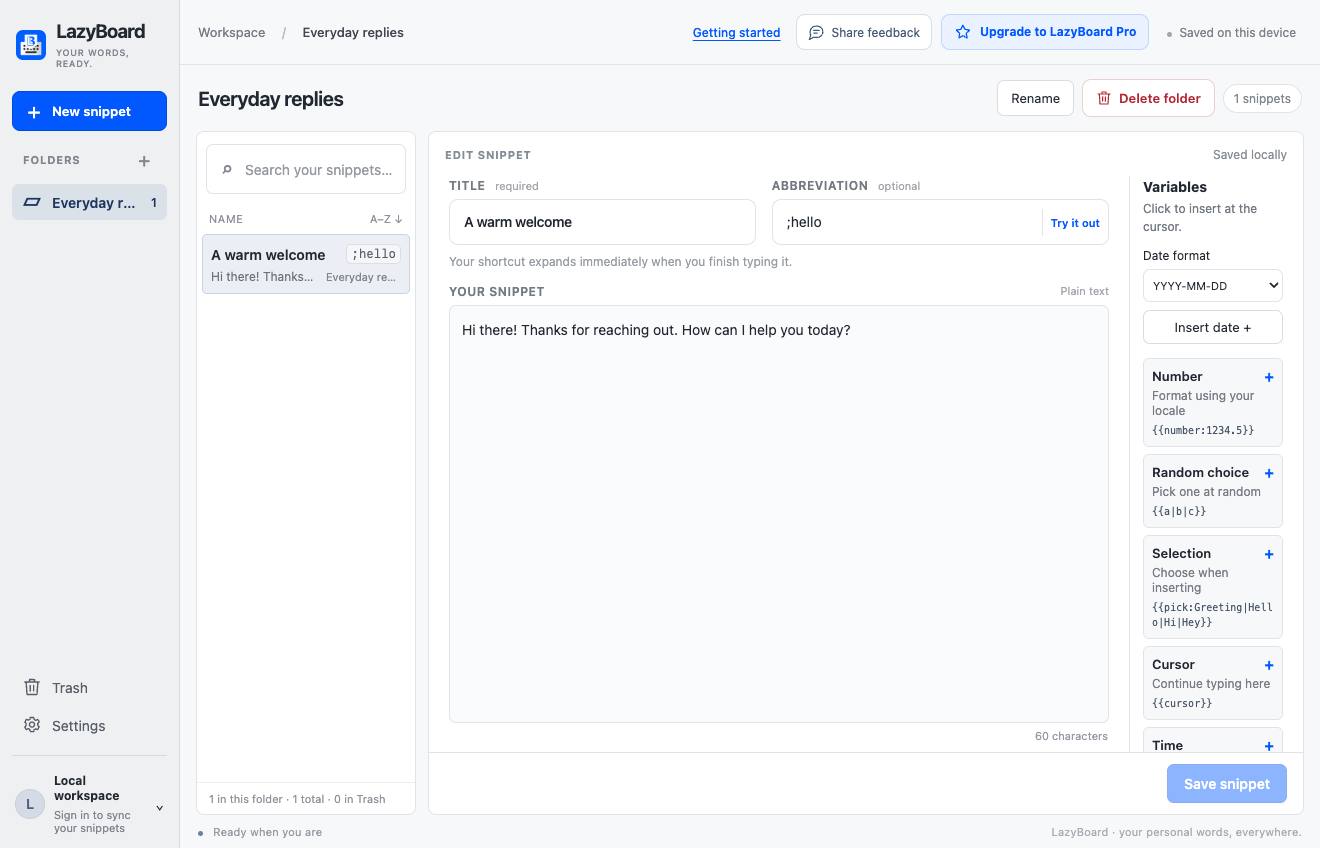
- Click New snippet in the sidebar.
- Give it a Title so it is easy to find.
- Add an optional Abbreviation, such as
;hello. Use a shortcut you would not normally type. - Write the full reply in Your snippet, then click Save snippet.
- Title
- A warm welcome
- Abbreviation
;hello- Your snippet
- Hi there! Thanks for reaching out. How can I help you today?
You can organize replies into folders using the + beside Folders. Your first snippet gets a folder automatically if your library has none.
Put your words to work
Type a shortcut
Keep LazyBoard running, click into a supported text field in another app, and type ;hello. Your full reply replaces the shortcut as soon as you finish typing it—no extra space is needed.
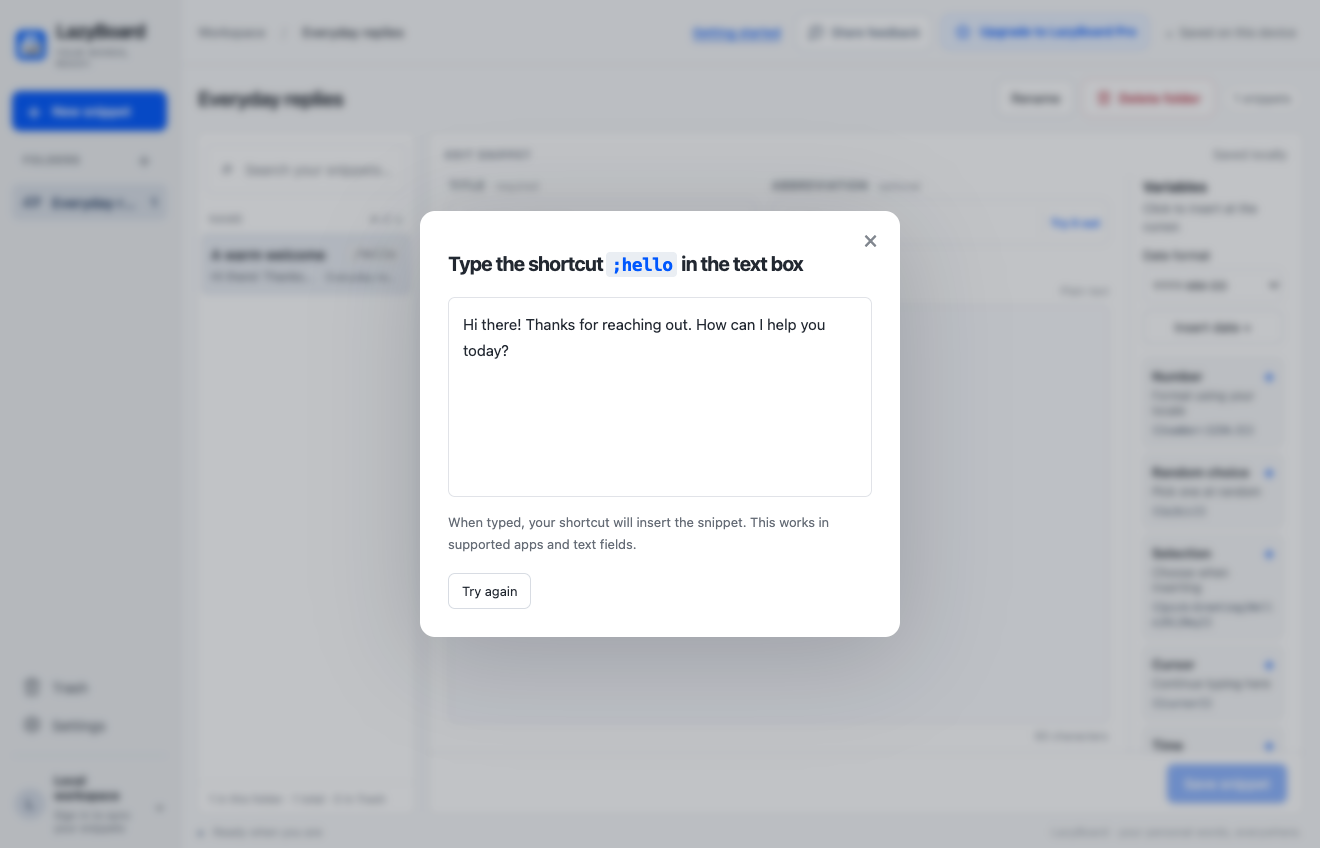
To practice inside LazyBoard, select your snippet, click Try it out beside its abbreviation, and type ;hello in the test field.
Or pick a snippet
- Click where you want the text to go in another app.
- Press ⌘ Shift Space on Mac or Ctrl Shift Space on Windows to open the snippet picker. If you changed this shortcut, use the one shown in the app sidebar or Settings.
- Search for your snippet, use the arrow keys to choose it, and press Enter to insert it.
Need a fallback? Click Copy, return to your app, and paste with ⌘ V on Mac or Ctrl V on Windows. Some apps and protected fields do not support automatic insertion.
If something does not work
The Accessibility banner will not go away
Confirm that the installed LazyBoard app is enabled in Accessibility, then return to LazyBoard and click Recheck. If you recently replaced or updated the app, remove its old Accessibility entry with the minus button, add the current app from Applications, and enable it again. Quit and reopen LazyBoard if necessary.
My shortcut does not expand
Make sure the snippet is saved, LazyBoard is running, and “Pause automatic expansion” is off in Settings. Check that the current app is not excluded in Settings. Test the abbreviation with Try it out, then try a normal text field in another app. Use Copy and paste if insertion is unsupported.
The picker does not open or cannot insert
Check the picker shortcut in Settings and change it if another app uses the same keys. Click into the destination text field before opening the picker. If there is no insertion target, use its Copy button and paste the snippet yourself.
You’re ready.
Save your next frequently used reply, signature, or address. Need a hand? Open Share feedback in LazyBoard or visit Support. For every feature and variable, read the LazyBoard documentation.