01
;salesrecapRecap the conversation
Connect the follow-up to something the person actually discussed.
 LazyBoardSign in
Keep your meeting recaps and resource replies ready. Add the detail from the conversation that makes the next message relevant to the person receiving it.
Saved replies · Text shortcuts · Personal touches
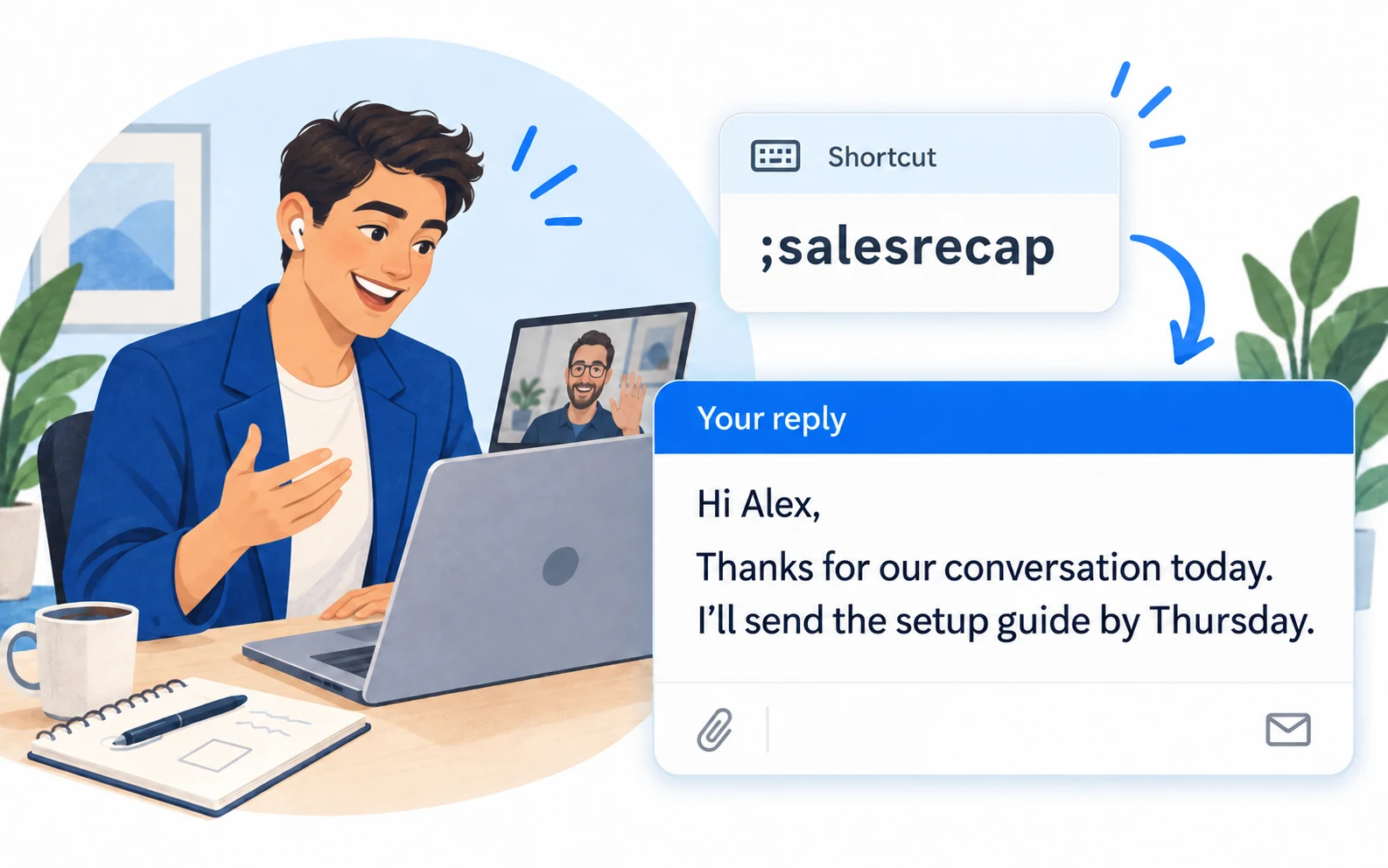
These snippets support one-to-one conversations. Fill in the actual context and agree on a useful next step.
Copy a snippet into LazyBoard on desktop or Chrome, then set its shortcut. {{name:…}} asks you to fill in a detail when inserting. How fields work →
;salesrecapConnect the follow-up to something the person actually discussed.
;salesresourceExplain why the resource is useful before adding the link.
;salesnextstepMake ownership and timing clear after a meeting.
Create separate snippets for a recap, a requested resource, and an agreed next step. Give each one a distinct shortcut so it’s easy to choose intentionally.
Fill in the specific question or goal from the conversation. Leave out claims or promises that don’t apply to this person.
Confirm that the resource is current and the next action is something you can deliver. Review the recipient and timing before sending.
Group replies by the stage of the conversation. Keep live customer records in your CRM, and use snippets for wording you can reuse across conversations.
Build an organized library →Use shortcuts or the snippet picker in supported desktop and Chrome fields. On iPhone and Android, use the LazyBoard phrase keyboard to select saved text.
Some apps and editors restrict insertion. Start with a sample in the field you use, and use Copy when needed. Mobile libraries and purchases are separate from desktop and Chrome.
No. These examples help you write individual messages. LazyBoard does not send them, build contact lists, or schedule a campaign.
These examples use fields that you complete yourself. They do not automatically fetch or update CRM records.
Yes. Keep separate snippets for different purposes, or use a choice field when only one part of the wording changes. Review the result before sending.
Examples prepared with AI assistance and checked against LazyBoard’s current guides. Updated October 14, 2026. Suggest a correction.