01
;interviewinviteInvite a candidate to talk
Include the role, length, and time zone so the invitation is easy to answer.
 LazyBoardSign in
Interview invitations and scheduling details often start the same way. Save that structure, then give each candidate the details they need for their next step.
Saved replies · Text shortcuts · Personal touches
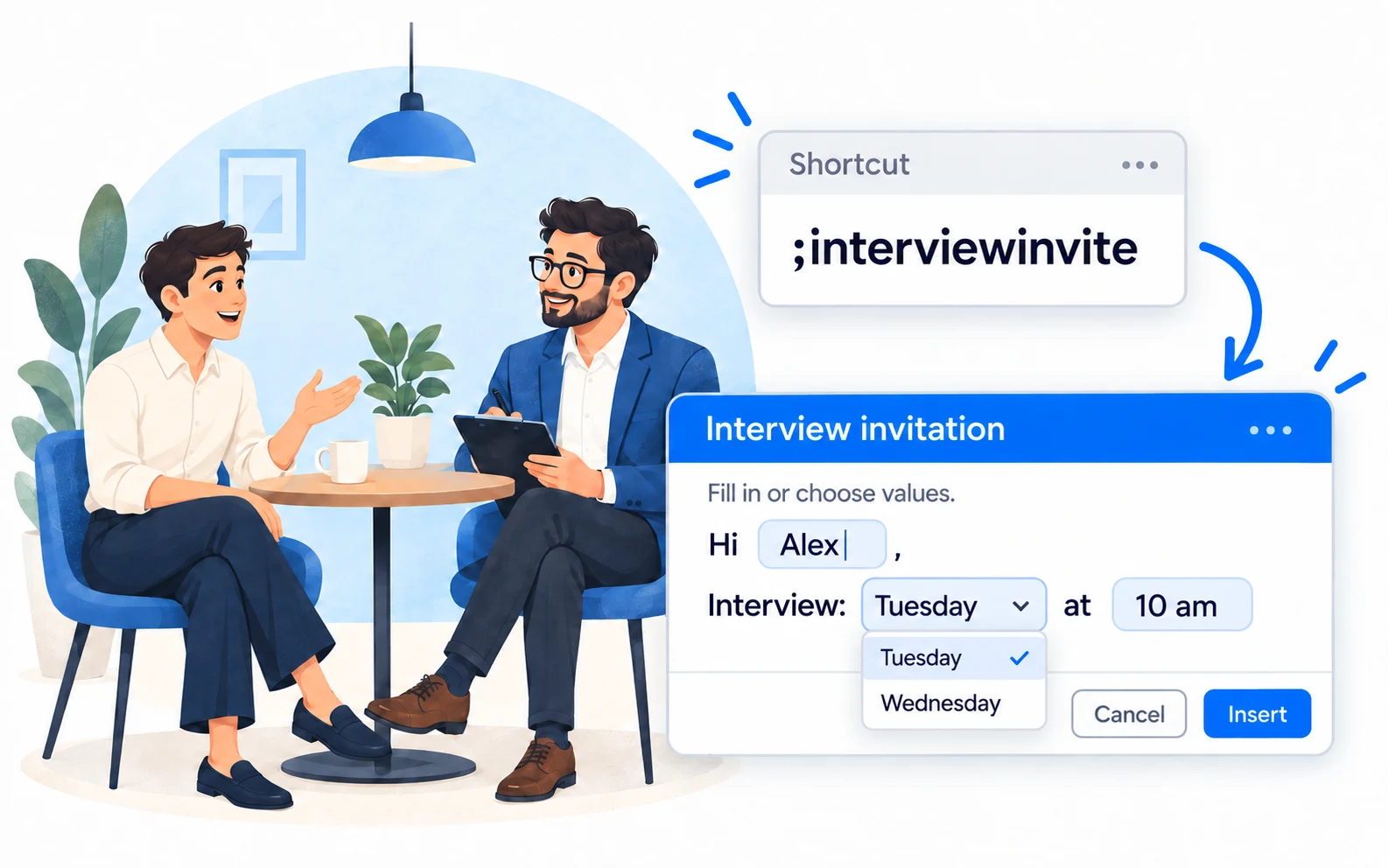
Use a separate snippet for each stage. That makes it easier to send the right message without carrying over old details.
Copy a snippet into LazyBoard on desktop or Chrome, then set its shortcut. {{name:…}} asks you to fill in a detail when inserting. How fields work →
;interviewinviteInclude the role, length, and time zone so the invitation is easy to answer.
;interviewdetailsSend practical information after a time has been agreed.
;candidateupdateUse a realistic update date rather than promising a hiring decision.
Create folders for invitations, interview details, and updates. Keep scheduling text separate from decisions so similar-looking replies don’t get mixed up.
Use fill-in fields for the role, date, and time zone. A field labelled “Date and time” is clearer than several nearly identical copies of a scheduling message.
Confirm the candidate, role, and meeting link against the current conversation. Add a personal sentence about what you discussed when it helps.
Organize by stage rather than storing a folder of personal records for every applicant. Keep candidate-specific information in your approved recruiting system.
Build an organized library →Use shortcuts or the snippet picker in supported desktop and Chrome fields. On iPhone and Android, use the LazyBoard phrase keyboard to select saved text.
Some apps and editors restrict insertion. Start with a sample in the field you use, and use Copy when needed. Mobile libraries and purchases are separate from desktop and Chrome.
No. It can insert the invitation and meeting details you save. You still confirm availability and create the meeting in your scheduling tool.
LazyBoard inserts text into supported fields; these examples do not fetch candidate records or change recruitment stages. Check insertion in the editor you use.
Yes. Use named fill-in fields for the candidate, role, and interview details. Review the result so the message fits that particular candidate.
Examples prepared with AI assistance and checked against LazyBoard’s current guides. Updated October 14, 2026. Suggest a correction.