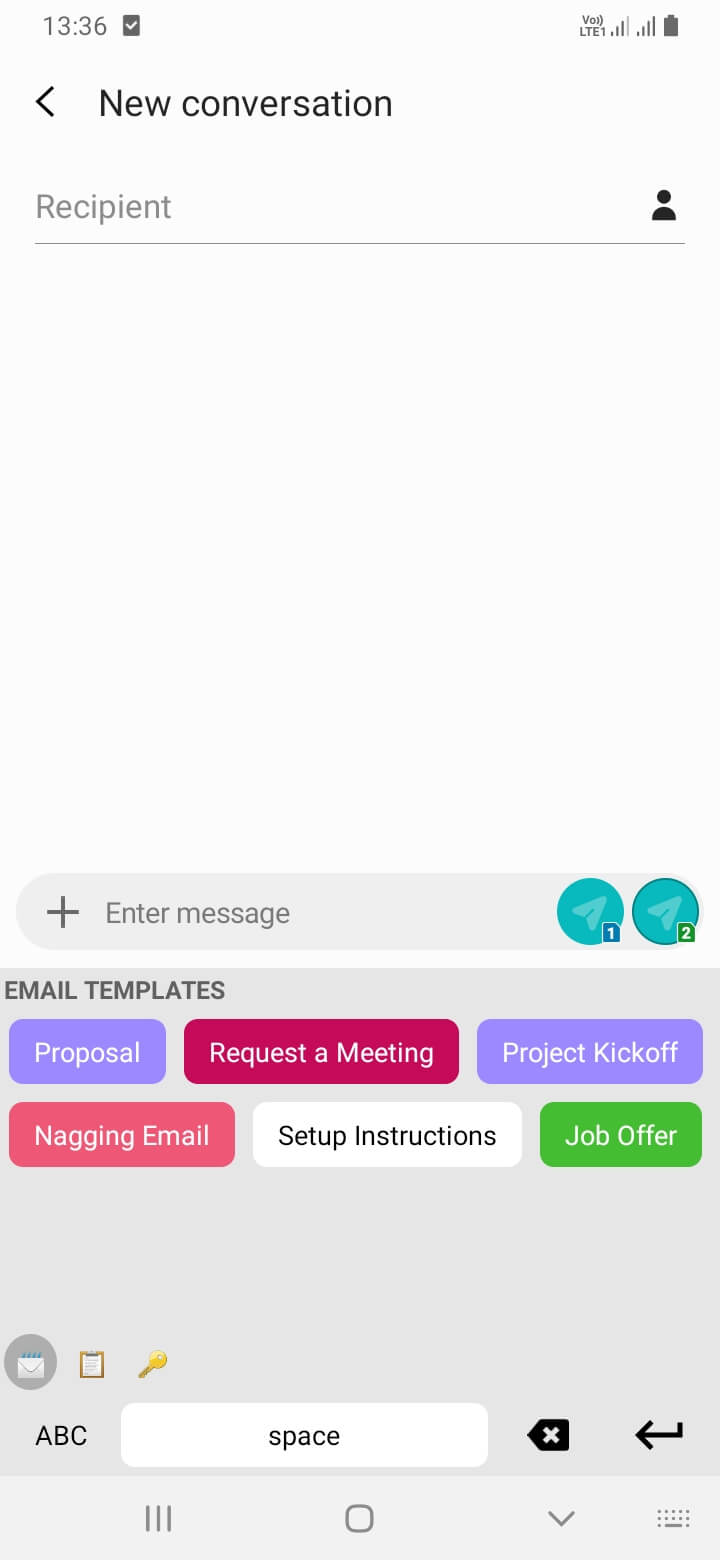
Mobile
From the original LazyBoard blog. This article describes the existing mobile or Mac App Store app; its features, prices, and comparisons may differ from the new desktop app and Chrome extension.
We support Android for LazyBoard, you can download it from here
Here is a step-by-step guide on how to install the LazyBoard keyboard on Android
- After the installation is complete, open Settings on your Android device.
- Scroll down and select System (or Additional Settings on some devices).
- Tap on Languages & input.
- Under Keyboards, select On-screen keyboard (or Virtual keyboard).
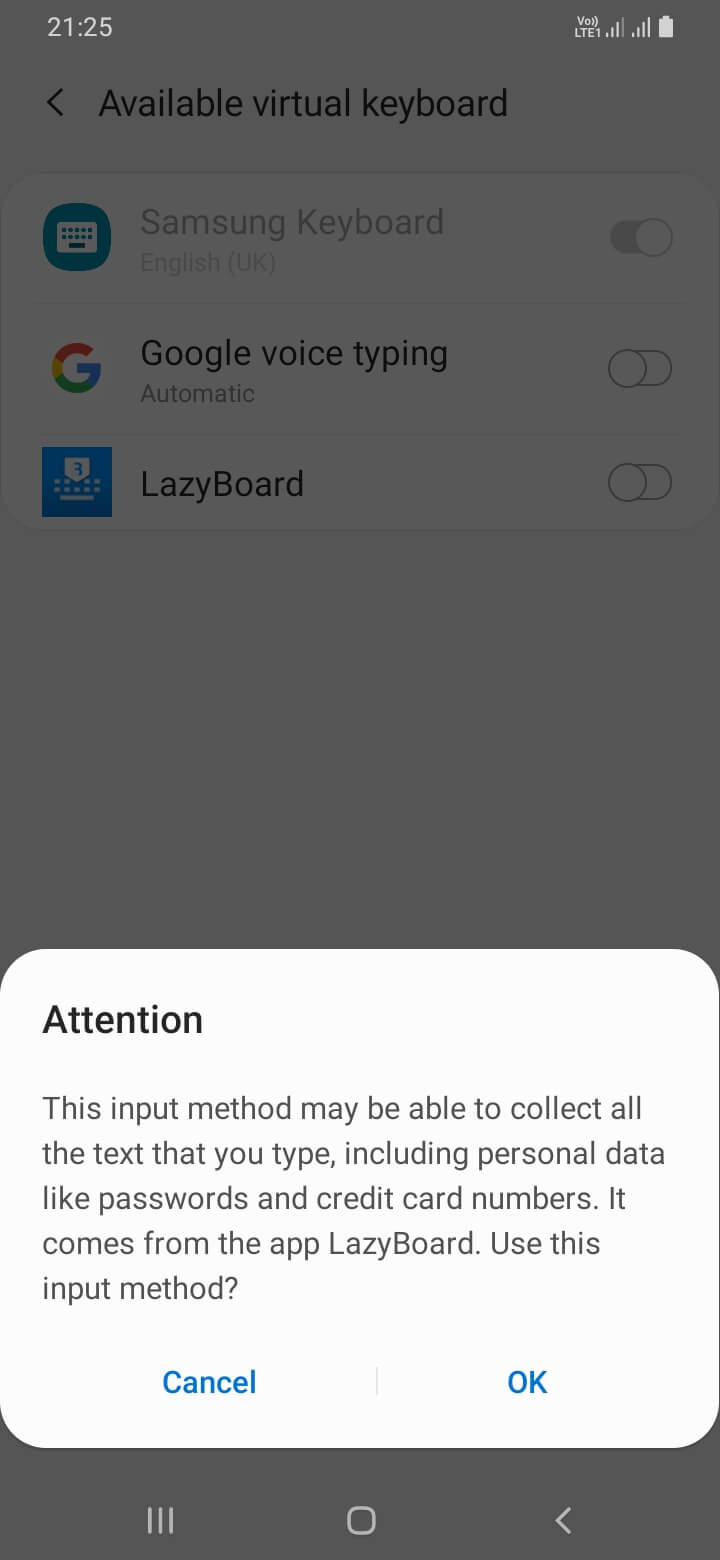
- Tap Manage keyboards, then toggle the switch next to LazyBoard Keyboard to enable it.
- Enable LazyBoard in your language & input settings.
- Select LazyBoard as your default input method
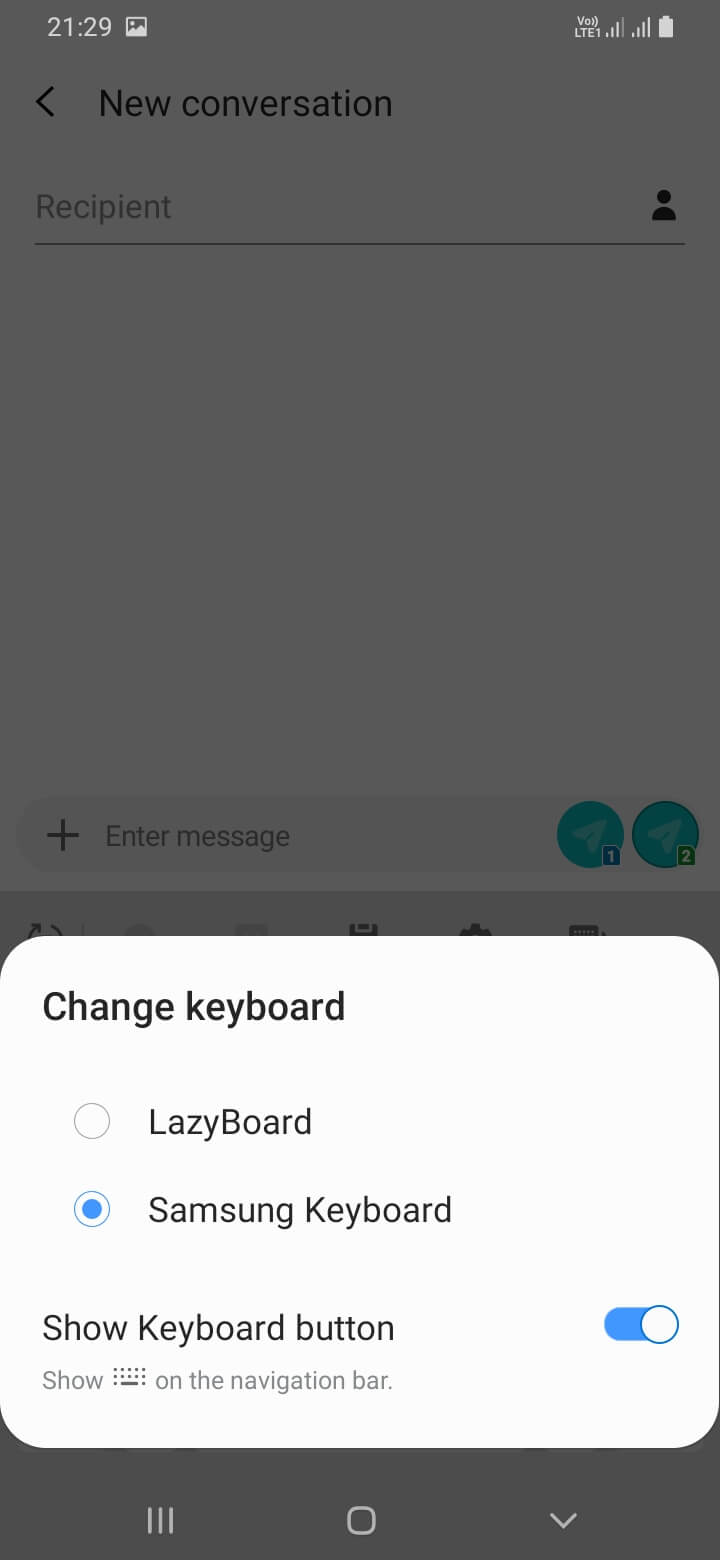
- Open any app where you need to type (e.g., messaging or email app).
- The LazyBoard keyboard should now appear, allowing you to easily insert your custom phrases and shortcuts.