
- Docs
- Platforms
- LazyBoard Mate for iPhone
Platforms
LazyBoard Mate for iPhone
Type your desktop snippets on iPhone with the LazyBoard Mate keyboard.
On this page
LazyBoard Mate is the iPhone companion to LazyBoard for Mac, Windows and Chrome. It is a separate app from the original LazyBoard phrase keyboard. Mate signs in to your LazyBoard account, so you edit the same snippets everywhere.
Set up the keyboard#
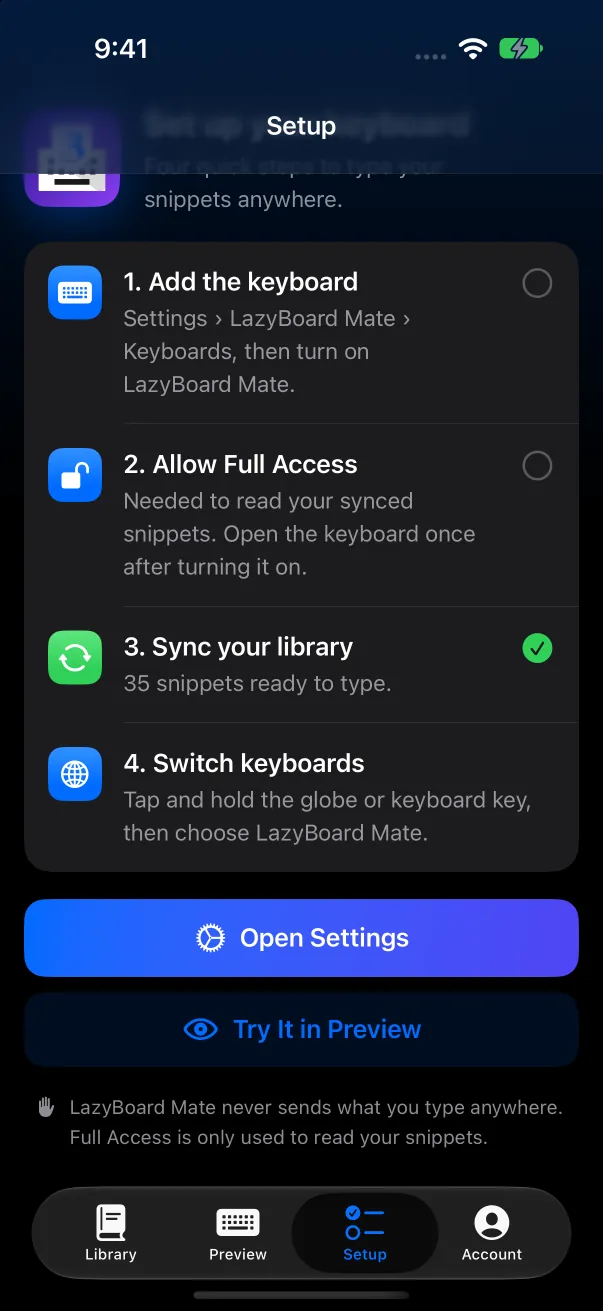
Open Mate, sign in or create an account, then open the Setup tab. It walks you through four steps:
- Add the keyboard: Settings › LazyBoard Mate › Keyboards, then turn on LazyBoard Mate. Open Settings takes you there.
- Allow Full Access: needed so the keyboard can read your synced snippets. Open the keyboard once after turning it on.
- Sync your library: your snippets download after you sign in.
- Switch keyboards: tap and hold the globe or keyboard key, then choose LazyBoard Mate.
Library and search#
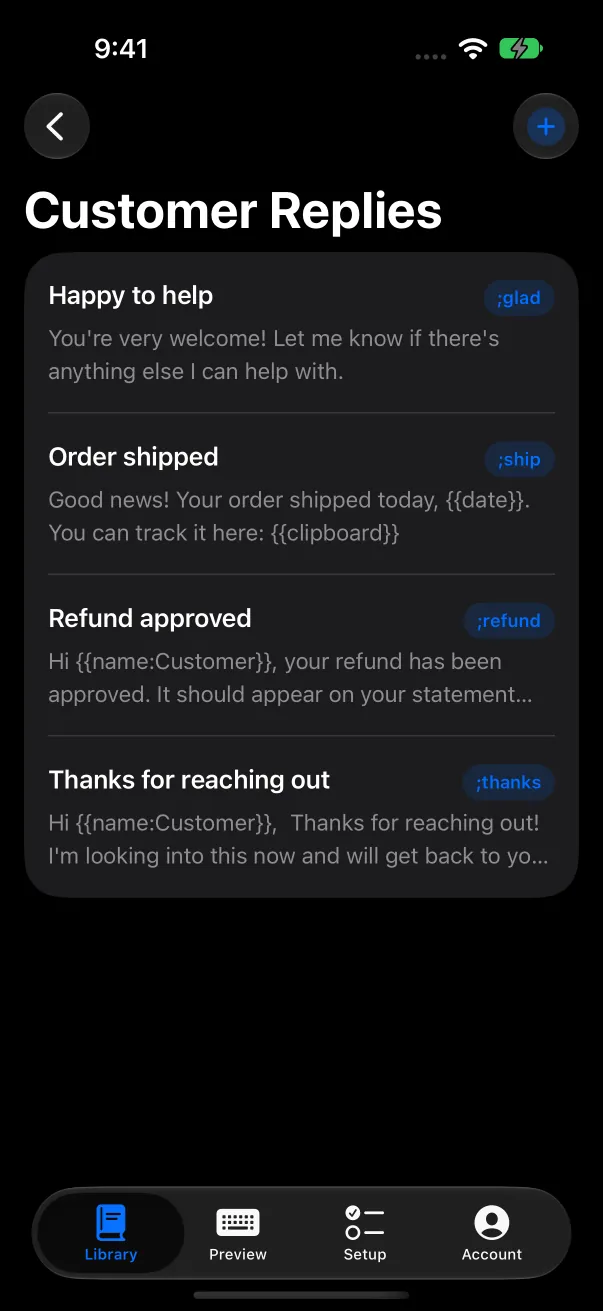
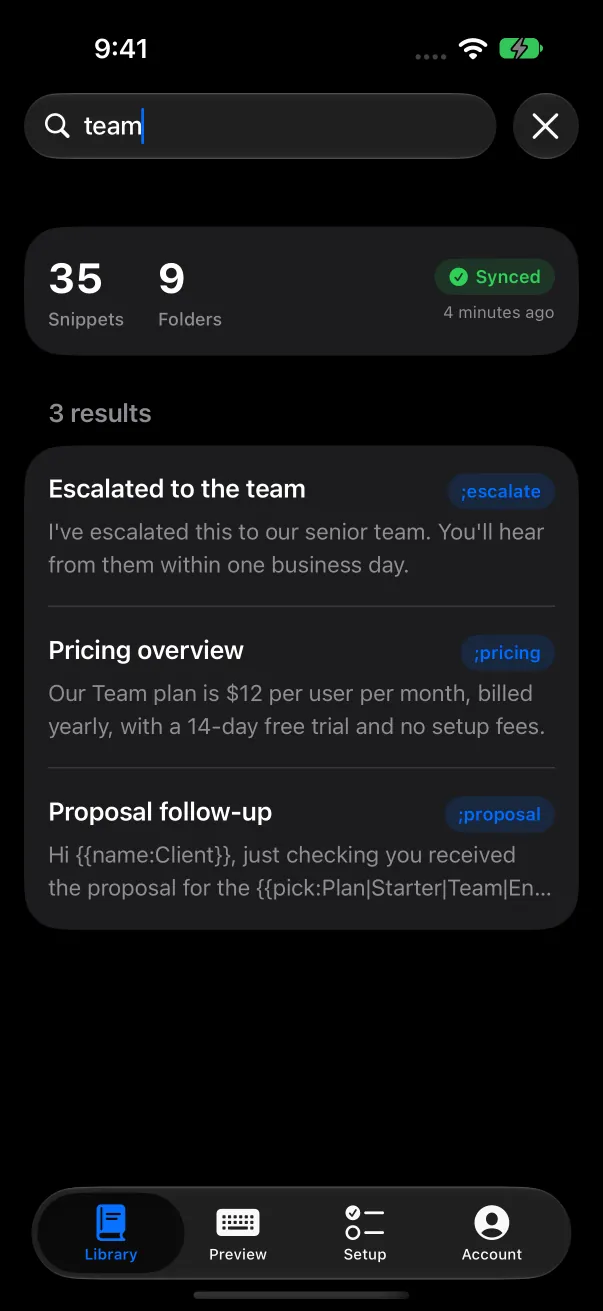
The Library tab shows your folders and snippets and whether they are synced. Search to find any snippet across folders. You can add and edit snippets on iPhone too; changes sync to your other devices.
Typing snippets and filling in fields#
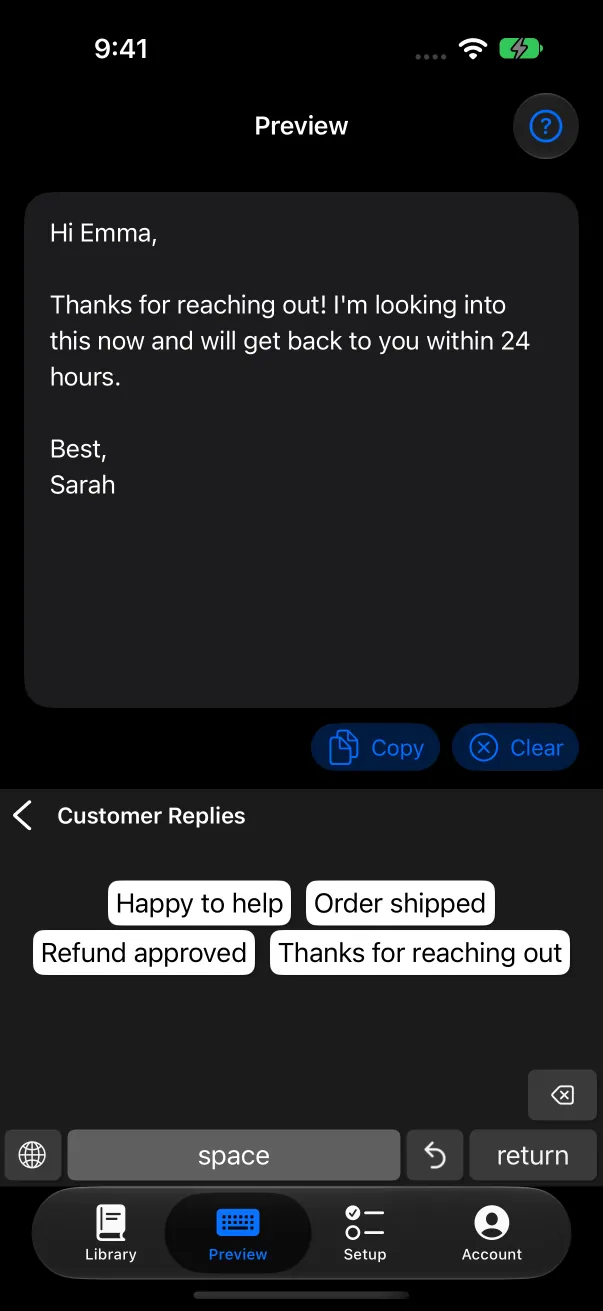
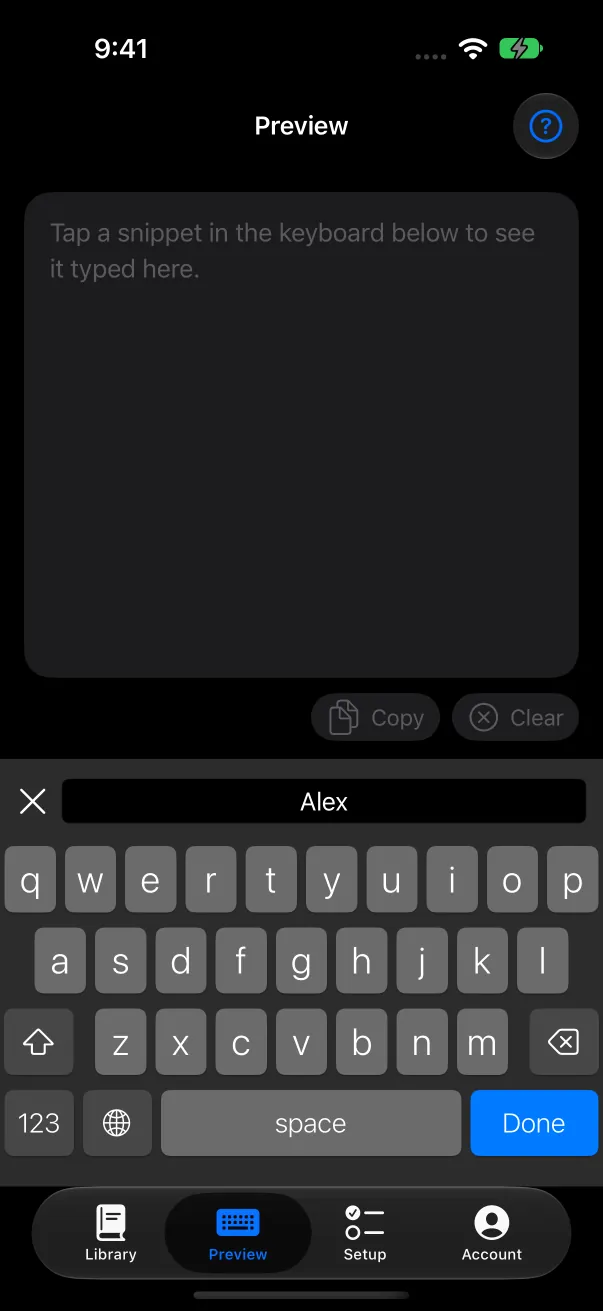
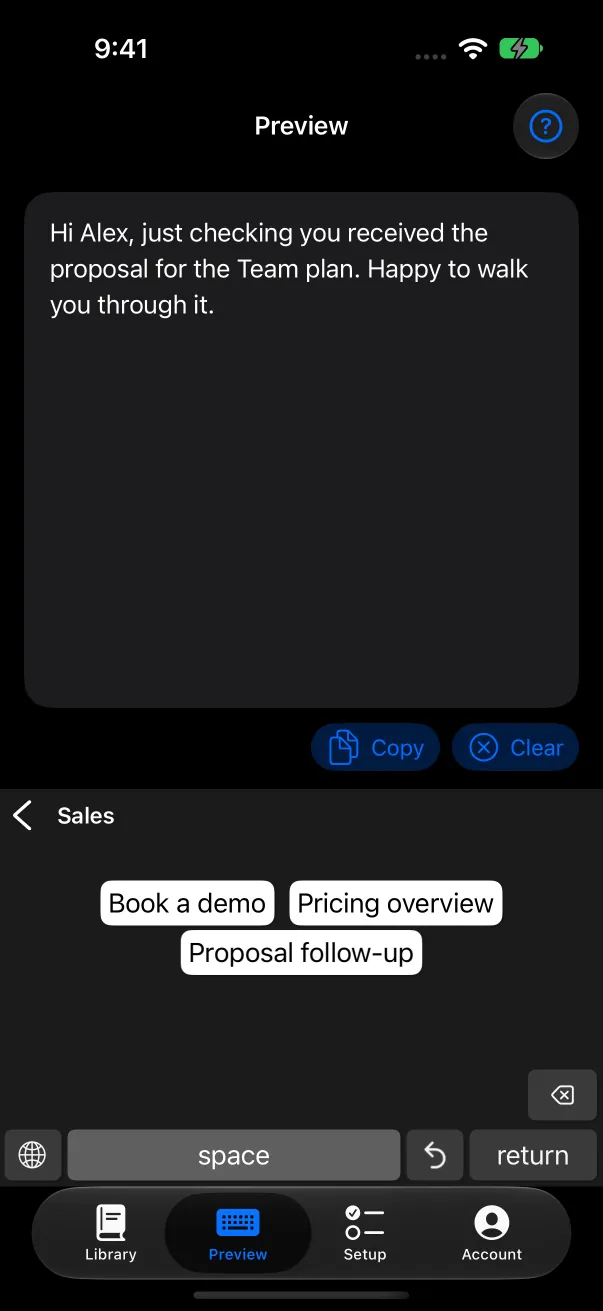
In any app, switch to the LazyBoard Mate keyboard, open a folder and tap a snippet. When a snippet has fields, the keyboard asks for each value first, then inserts the finished text.
Plans on iPhone#
Mate is free to start. Pro is one plan for iPhone, Mac, Windows and Chrome: if you already have Pro on desktop, it’s included. You can also subscribe in the app through the App Store; cancel that subscription in Settings › Apple Account › Subscriptions. See plans and billing.