
- Docs
- Getting started
- Install LazyBoard
Getting started
Install LazyBoard
LazyBoard runs on Mac, Windows, Chrome and iPhone. Install it where you type.
On this page
Mac#
- Open the Mac download page and choose Apple silicon (M1 or newer) or Intel.
- Open the downloaded DMG and drag LazyBoard to Applications.
- Open LazyBoard from Applications. A welcome screen explains the two ways to insert snippets.
- Allow Accessibility when macOS asks, so LazyBoard can detect shortcuts and insert text. See Mac permissions.
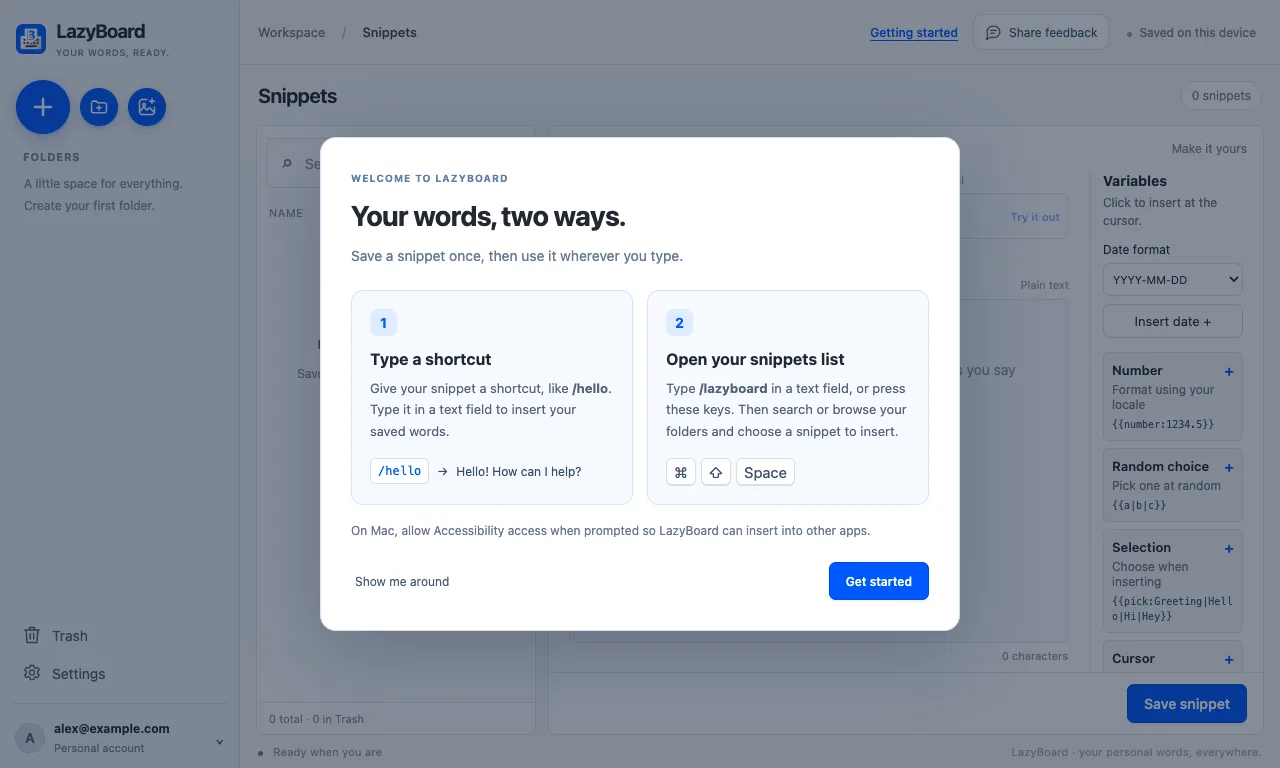
LazyBoard lives in the menu bar as well as the Dock. Updates download inside the app; you can also choose Check for Updates….
Windows#
- Get LazyBoard from the Microsoft Store. It needs Windows 10 version 2004 or later, or Windows 11.
- Open LazyBoard from the Start menu. Windows doesn’t need the Accessibility permission the Mac app asks for.
- Create a snippet and try it. The picker shortcut on Windows is CtrlShiftSpace.
The Microsoft Store installs updates for you. The Windows app looks and works like the Mac app; the screenshots in these docs come from a Mac, so read Ctrl where they show ⌘.
Chrome extension#
- Open LazyBoard in the Chrome Web Store and choose Add to Chrome.
- Pin the extension to your toolbar, then open it and choose Open dashboard to create snippets.
- Type a shortcut in a text field on any website, or press AltShiftL to search your snippets.
The extension also works in Microsoft Edge and Brave. Read Chrome extension for details.
iPhone#
LazyBoard Mate brings your desktop snippets to an iPhone keyboard. It is listed on the App Store as Desktop Mate - LazyBoard. It signs in to your LazyBoard account and downloads your synced library. See LazyBoard Mate for iPhone for setup.
Next steps#
- On a Mac, allow Accessibility.
- Create your first snippet.
- Using more than one device? Read accounts and sync.