
- Docs
- Getting started
- Create your first snippet
Getting started
Create your first snippet
Save something you type often, give it a shortcut, and use it in your next message.
Create a snippet#
- Click the round + button (New snippet) at the top of the sidebar. If a folder is open, the snippet goes into that folder.
- Type a Title so you can find it later. A title is required.
- Add an optional Abbreviation, such as
;sig. This is the shortcut you’ll type. - Write the text in Your snippet. Several lines, Arabic and emoji all work.
- Click Save snippet.
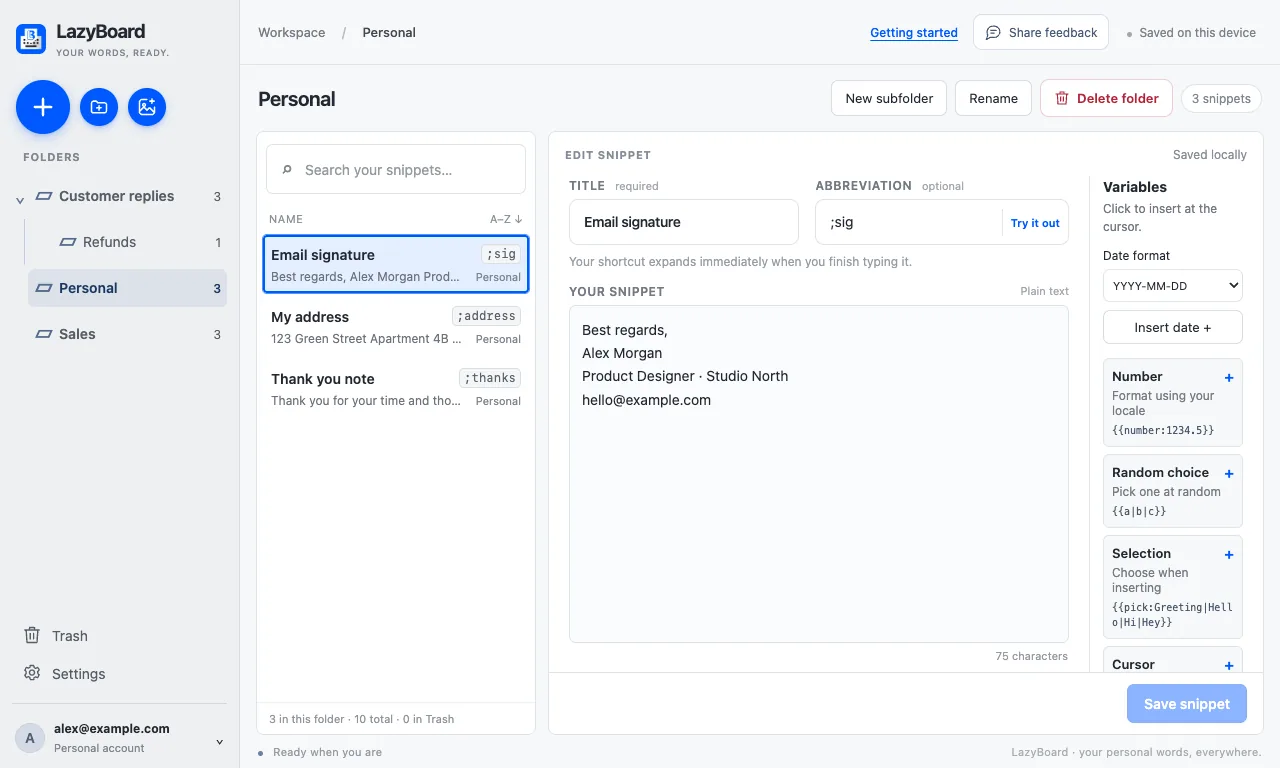
;sig.Try it out#
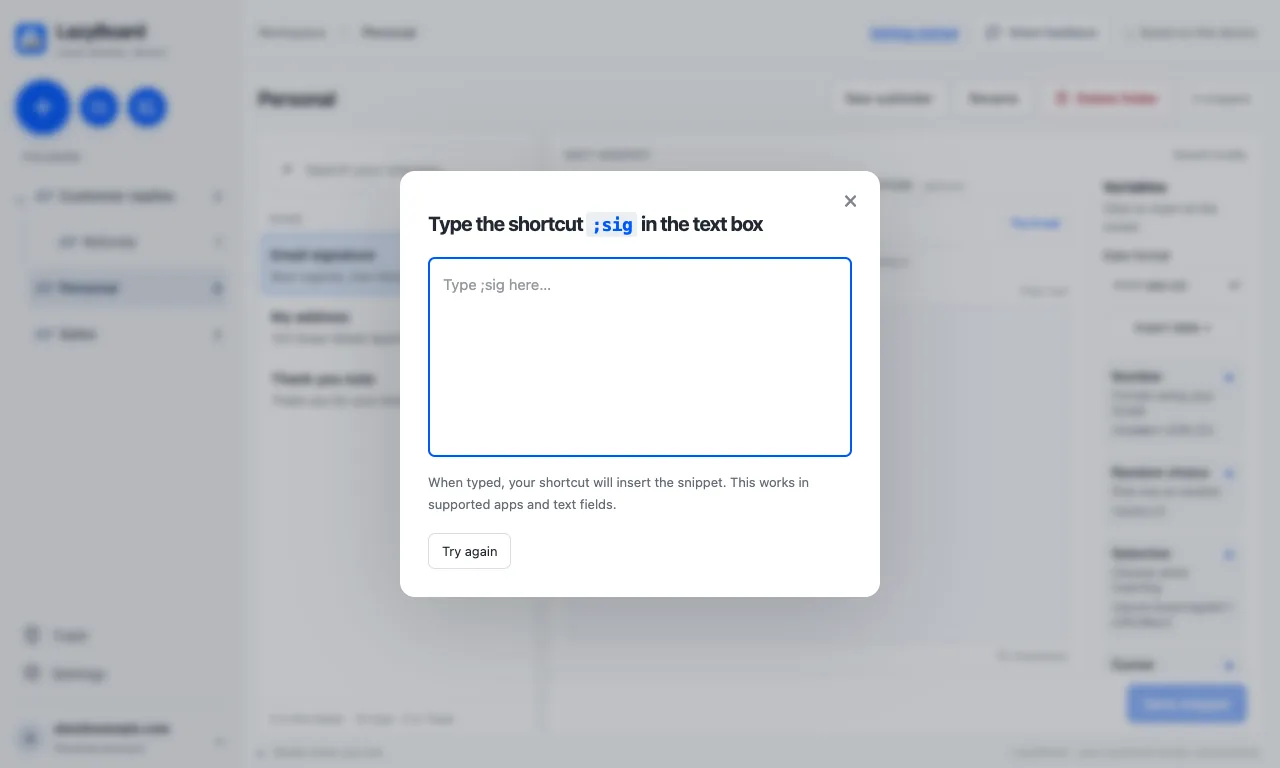
Click Try it out next to the abbreviation. Type the shortcut in the practice box to see it expand without leaving LazyBoard. If the snippet has fields, the fill-in window opens first.
Use it anywhere#
- Shortcut: click into a text field in any app, type
;sig, and it is replaced as soon as you finish typing it. - Picker: press ⌘ShiftSpace on Mac or CtrlShiftSpace on Windows, or type
/lazyboard, then search and press Return. See the picker.
Choosing good abbreviations#
- Start with a character you rarely type, such as
;or/, so a shortcut never fires by accident.;addris better thanaddr. - Abbreviations can’t contain spaces, can be up to 64 characters, and must be unique in your library. LazyBoard warns you about a clash before saving.
- Keep a pattern:
;r-for replies,;s-for signatures.