- Docs
- Organising
- The picker and menu bar
Organising
The picker and menu bar
Forgot a shortcut? Search for the snippet and insert it.
Open the picker#
- Click into the text field where the snippet should go.
- Press ⌘ShiftSpace on Mac or CtrlShiftSpace on Windows, or type
/lazyboard. - Start typing to search titles and content. Use ↑ ↓ to choose and Return to insert.


List and folder views#
Use the two buttons beside the search box to switch between List view, which shows every snippet, and Folder view, which lets you browse one folder at a time. LazyBoard remembers your choice and the last folder.
Copy instead of insert#
Some apps and editors don’t allow insertion. Click Copy on a row, then paste with ⌘V or CtrlV. If no text field was selected, the picker shows a reminder to click a text field first.
The menu bar panel#
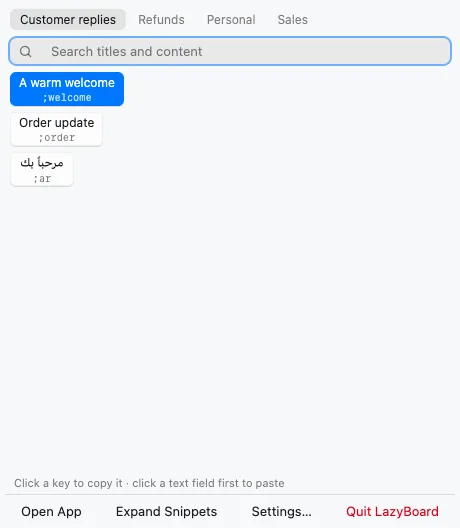
On Mac, click the LazyBoard icon in the menu bar for a compact panel. Each folder is a tab and each snippet is a key: click one to paste it into the last text field, or to copy it if no field is selected. The bottom row has Open App, Expand Snippets (to pause or resume), Settings… and Quit LazyBoard.