
- Docs
- Getting started
- Mac permissions
Getting started
Mac permissions
macOS asks you to allow LazyBoard before it can expand shortcuts in other apps. Windows and Chrome don’t need this step.
On this page
Why LazyBoard needs Accessibility#
To expand a shortcut, LazyBoard has to notice when you finish typing it and then replace it with your snippet in the app you are using. macOS only lets apps do that with the Accessibility permission. Some Macs also ask for Input Monitoring.
Allow Accessibility#
- Open LazyBoard. If you see Allow Accessibility, click it.
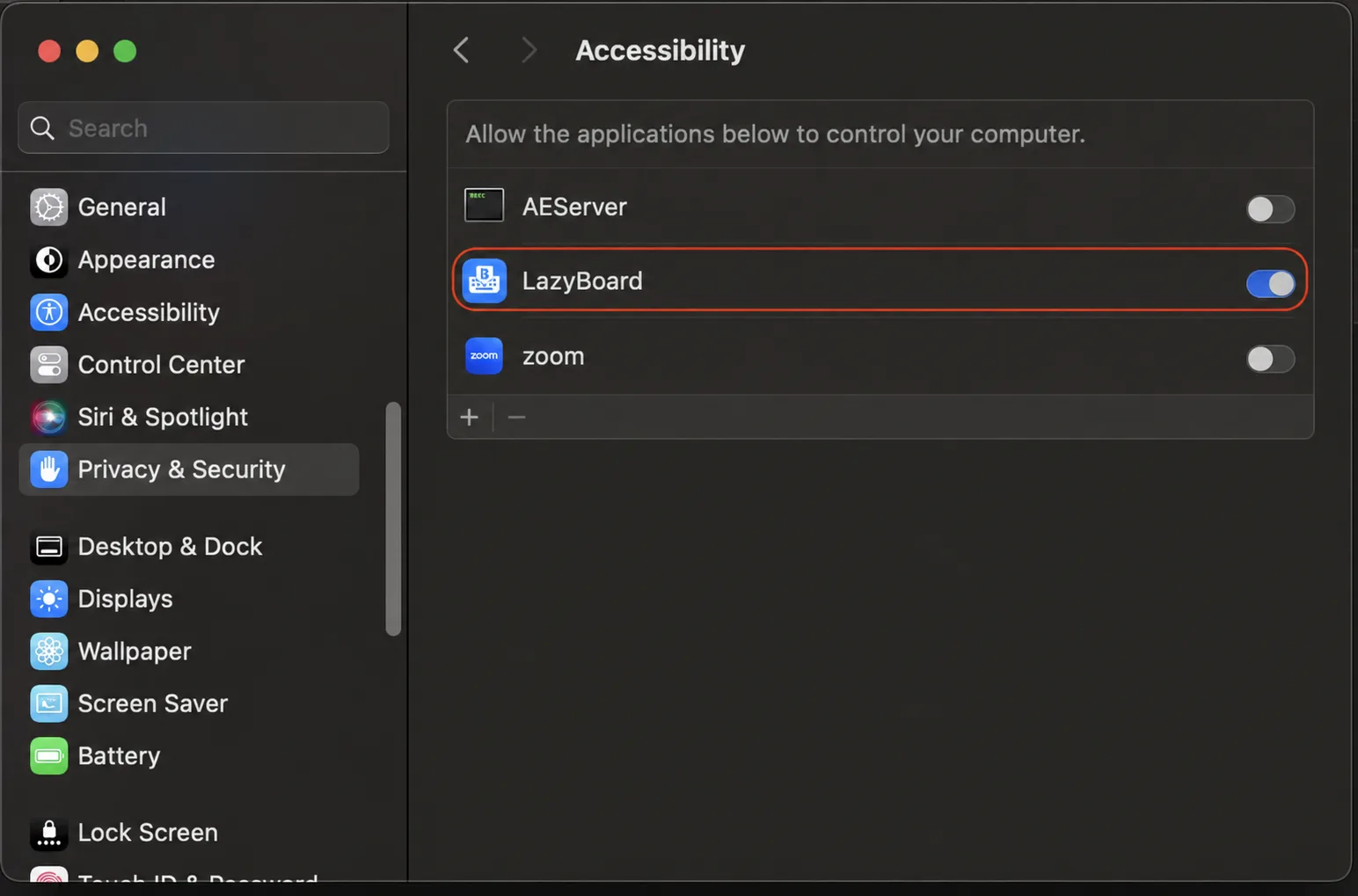
- In macOS, open System Settings → Privacy & Security → Accessibility.
- If LazyBoard isn’t in the list, click +, choose LazyBoard in Applications and click Open.
- Turn on the switch next to LazyBoard. macOS may ask for your password.
- Go back to LazyBoard. If the Enable insertion banner is still there, click Recheck.
Input Monitoring#
If macOS shows an Input Monitoring prompt, allow it the same way in System Settings → Privacy & Security → Input Monitoring, then quit and reopen LazyBoard.
If it still doesn’t work#
- Remove LazyBoard from the Accessibility list with −, add it again with +, and turn it on.
- Make sure you opened the copy in Applications, not the one inside the DMG.
- After an update, macOS sometimes needs the switch turned off and on again.
- See Troubleshooting for app-specific issues.